Day-to-Day Reviewer Workflow in Numeric Cash Management
Last updated: June 16, 2026
After go-live, Cash Management runs on a daily rhythm. Your bank data syncs overnight, the rules engine runs, and your team reviews and approves what it produced.
This guide walks through the daily workflow: where to start, what to review, and how to keep the queue clean between closes.
The Daily Rhythm
A typical day in Cash Management has 3 stages:
Review what the engine produced.
Approve matches and journal entries.
Work through exceptions for anything the engine couldn't handle.
The frequency depends on transaction volume. High-volume accounts often work the queue daily; lower-volume accounts may only need attention 2 to 3 times a week.
Where to Start: Awaiting Your Review
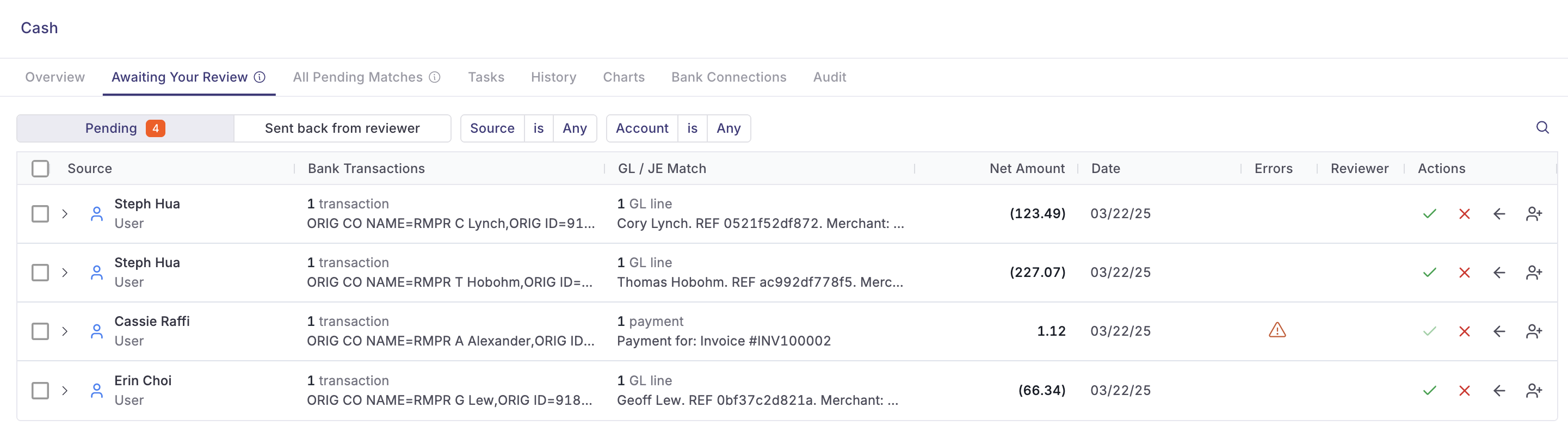
The Awaiting Your Review queue is the home base for reviewers. It surfaces every pending match and draft journal entry assigned to you for approval.
To work the queue:
Open Awaiting Your Review.
Step through each item. For each, decide:
Approve: The match or entry is correct. Approving a journal entry moves it toward posting to NetSuite.
Reject: Something's wrong. Send it back for rework.
Skip: Defer for now if you need to investigate.
Continue until the queue is empty or you've handled everything you can.
Approving a journal entry doesn't immediately post it to NetSuite. Posting follows the workflow defined by your Workspace Settings — including any Post as Pending configuration. Refer to Workspace Settings for Numeric Cash Management for details.
Match History
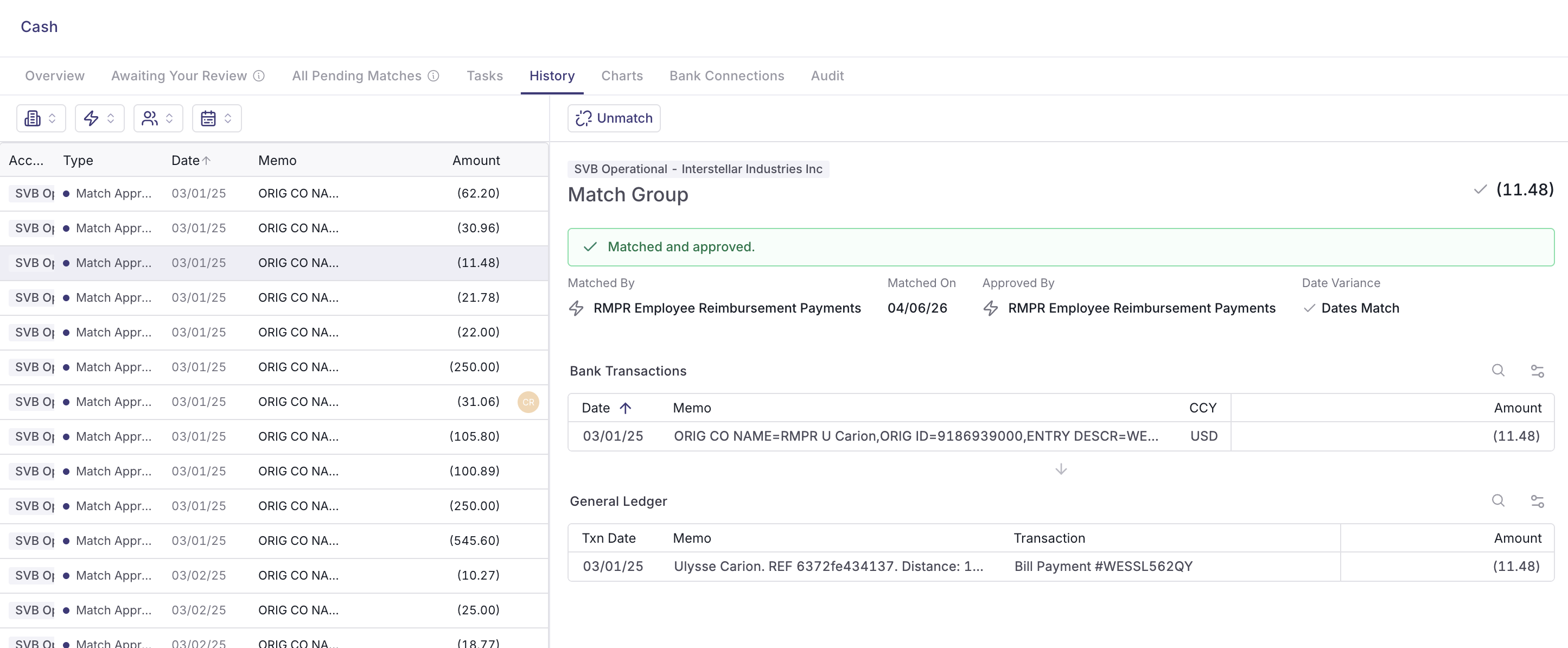
Match History is the audit trail for everything the engine has produced. Filter by date, rule, status, or reviewer to:
Confirm a specific match or journal entry posted as expected.
Investigate a question from a controller, auditor, or your accounting team.
Spot-check rule performance over the last week or month.
Handling Exceptions in the Daily Workflow
Exceptions are transactions the rules engine couldn't match, and they won't show up in Awaiting Your Review. They live in the Transaction Explorer under unmatched status. Build them into your daily routine:
After clearing Awaiting Your Review, open the Transaction Explorer.
Filter to unmatched bank lines and unmatched general ledger (GL) lines.
Work through them using the resolution paths covered in Handling Exceptions and Unmatched Transactions in Numeric Cash Management.
If you see the same exception type repeatedly, that's a signal to build or refine a rule rather than keep matching manually.
Cadence Between Closes
Most reviewers settle into one of 2 patterns:
Daily: Open Awaiting Your Review each morning, clear it, scan for exceptions, move on. Works well for high-volume accounts or teams with strong daily-close discipline.
2 to 3 times a week: Batch the review work into focused sessions. Works for lower-volume accounts where daily attention isn't necessary.
Whichever cadence you pick, the goal at month-end is the same: Awaiting Your Review is empty, exceptions are resolved or explicitly accepted, and Match History reflects a clean record of activity for the period.
Tips for Keeping the Queue Clean
Build rules from repeat exceptions: If a transaction pattern shows up in exceptions more than once, use Match & Create Rule to capture it.
Refine rather than reject: When an entry is almost right, refine the rule rather than rejecting and re-doing the work manually.
Use Match History as a feedback loop: A spike in manual matches or rule edits during the week is a sign a rule needs adjusting.
Permissions
Reviewing items in Awaiting Your Review: Administrator, Manager, and Staff.
Approving matches and journal entries: depends on the reviewer assignment within each rule. Refer to Understanding User Roles in Cash Management.
Viewing Match History: Administrator, Manager, Staff, and Viewer.
Need help? Contact your Solutions specialist or reach out to support@numeric.io.