Workspace Settings for Numeric Cash Management
Last updated: June 16, 2026
Workspace Settings hold configuration that applies across every Cash Management account in your workspace. These settings gate certain rule-level options and govern how Numeric interacts with NetSuite.
This guide covers the settings most relevant to Cash Management and when to configure them.
When to Configure Workspace Settings
Configure Workspace Settings during initial setup, before customers start approving rules or going live. A few settings — particularly auto-approval — gate options that don't appear on individual rules until they're enabled here.
Settings Overview
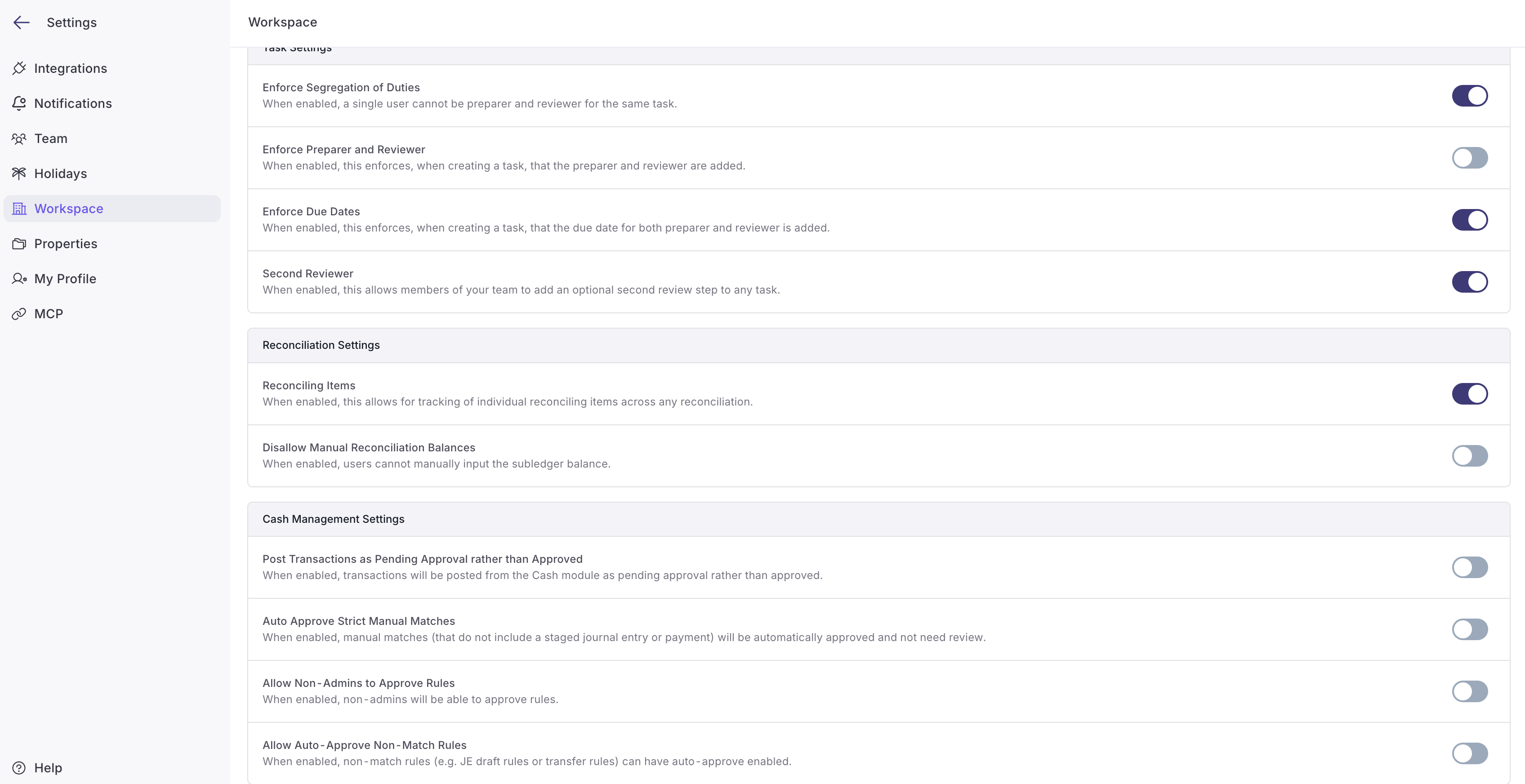
1. Post Transactions as Pending Approval rather than Approved
"Post as pending" controls how Numeric posts journal entries to NetSuite. When enabled, entries are posted to NetSuite in a pending status, giving your team a chance to review and approve them inside NetSuite before they hit the general ledger (GL).
When to enable: Customers who use NetSuite's native approval workflows, or who want a second validation layer outside Numeric.
When to leave off: Customers who treat Numeric's approval as the source of truth and post directly to NetSuite.
2. Auto-Approve Strict Manual Matches
Auto-approval lets Cash Management rules generate and post journal entries to NetSuite without manual review.
Workspace-level toggle: Must be enabled here before the auto-approval option appears on any individual Journal Entry rule.
Rule-level toggle: Once enabled at the workspace level, each rule can independently opt in or out of auto-approval.
Scope: Applies to Journal Entry Draft, Transfer, and Intercompany Transfer rules.
Enabling auto-approval at the workspace level doesn't auto-approve any existing rules. Each rule must independently turn on auto-approval after the workspace setting is enabled.
For details on how rule-level auto-approval works, refer to Building Journal Entry Rules with Numeric Cash Management.
3. Allow Non-Admins to Approve Rules
Toggling on this workspace setting will allow users who are not Administrators to approve new drafted rules and accept changes to existing rules.
To review standard permissions related to Rules, please see Building Journal Entry Rules with Numeric Cash Management.
4. Allow Auto-Approve Non-Match Rules
Toggling on this workspace setting will allow non-match rules (including JE draft rules or transfer rules) to be auto-approved.
Configuring Workspace Settings
Navigate to Settings.
Open the Workspace section.
Locate the Cash Management settings.
Toggle each setting as needed for your workspace.
Save.
How Settings Flow to Rules and NetSuite
Workspace Settings act as a ceiling. A rule can only auto-approve if the workspace setting is on. A journal entry can only post as pending if the workspace setting is on. Disabling a workspace setting after rules have been configured turns off the corresponding behavior on every rule — confirm with your team before flipping these settings mid-cycle.
Permissions
Editing Workspace Settings: Administrator.
Viewing Workspace Settings: Administrator, Manager, Staff, and Viewer.
Need help? Contact your Solutions specialist or reach out to support@numeric.io.