Using the Rule Assistant in Numeric Cash Management
Last updated: June 16, 2026
The Rule Assistant is the fastest way to build match and journal entry rules in Cash Management. It lives in a side panel on every account page, runs as a freeform chat, and handles the heavy lifting of exploring your data, identifying patterns, and drafting validated rules. This guide explains how the Rule Assistant works and how to prompt it effectively.
How the Rule Assistant Works
The Rule Assistant takes a natural language prompt and walks through a 4-step process to draft rules:
Data exploration: The Assistant reviews all bank and general ledger (GL) data currently loaded into the Cash Management module for the account — whether the bank data came from manual uploads or a live connection — and identifies patterns across both sides.
Pattern recognition: It groups transactions into categories based on memo content, amount patterns, and timing characteristics.
Rule proposal: It surfaces named rule recommendations with type tags (for example, "Match One-to-One: Wire-In Deposits"). You decide which to build.
Sequential build: Once you approve, the Assistant builds each rule one at a time. You'll see live progress as it generates the configuration, validates the rule, and confirms success.
Built rules appear in the main panel as you approve them. From there, you can use the Rule Preview to validate them or save the engine.
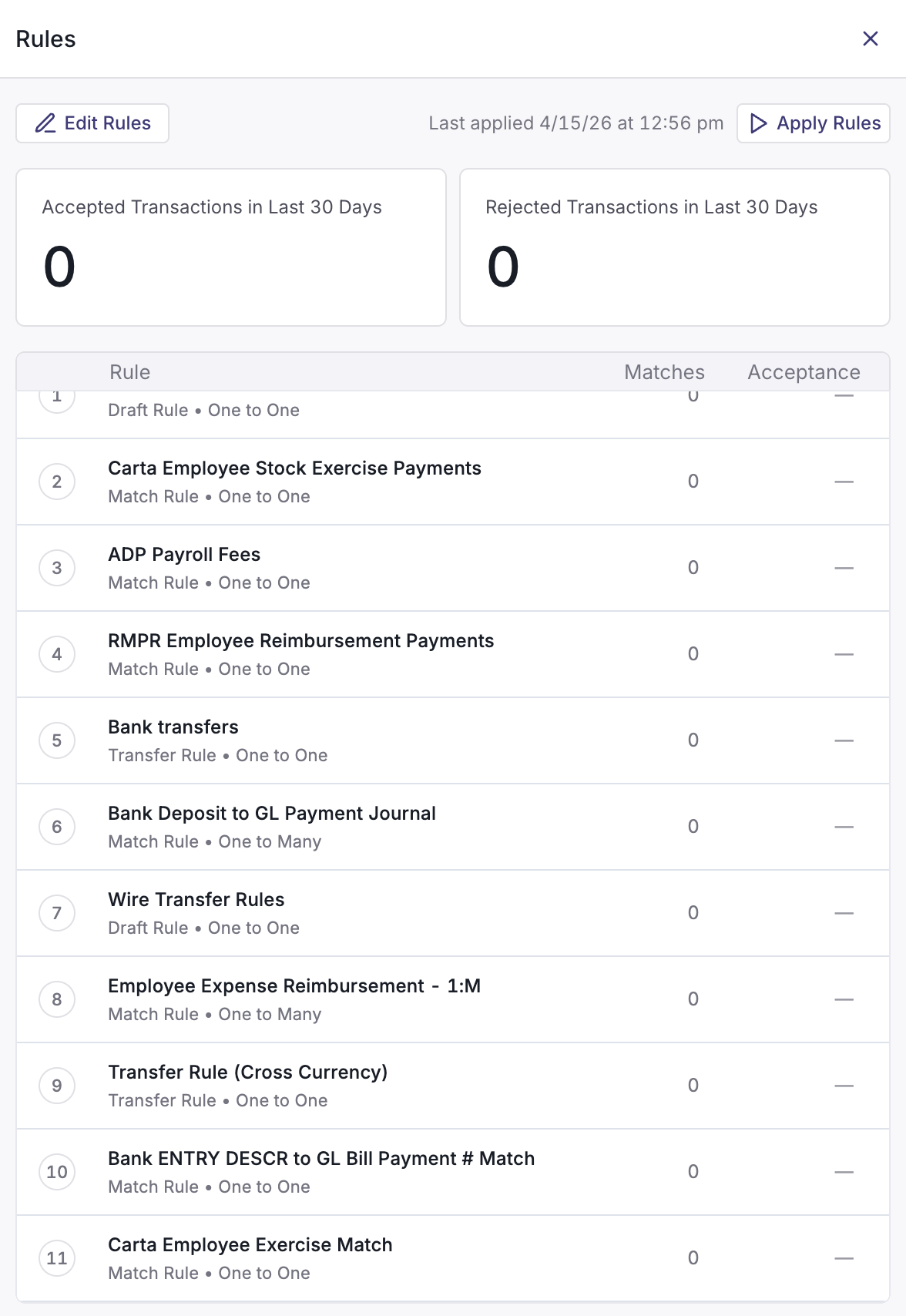
Rules built through the Rule Assistant are specific to the account where you ran it. Each account maintains its own rule set and rules don't transfer between accounts. To build rules for a different account, navigate to that account and open the Rule Assistant there.
Starting a Conversation
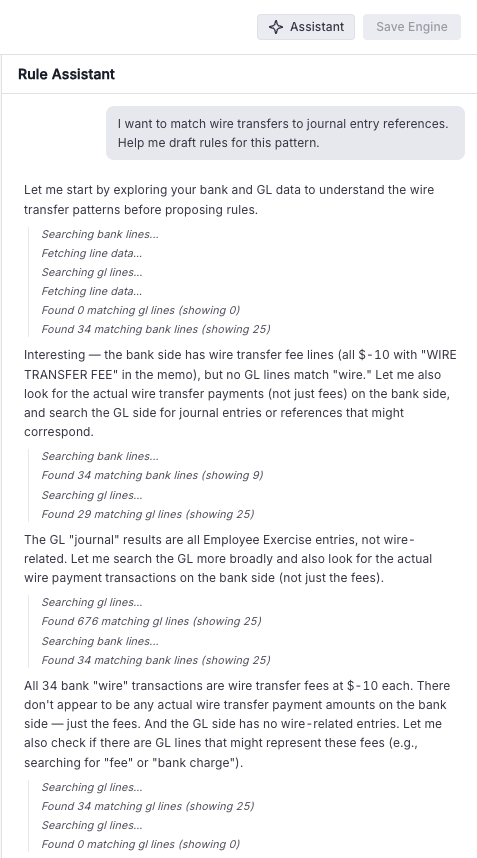
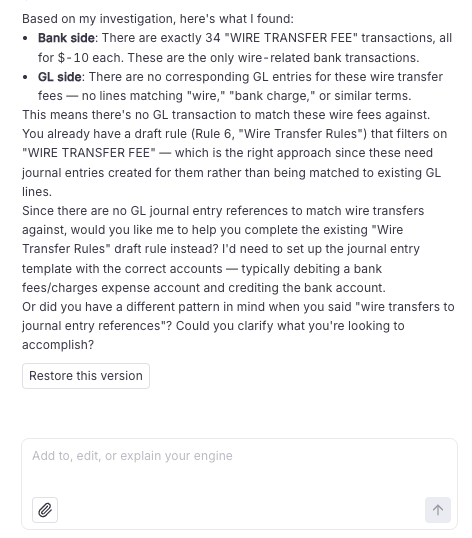
To open the Rule Assistant, navigate to the account you want to build rules for and open the Rule Assistant side panel. Type a starting prompt. The Assistant works best when you give it a clear objective and let it explore from there.
Good starting prompts:
"Build match rules for this account."
"Build a journal entry draft rule for Automated Clearing House (ACH) fee transactions on this account."
"I want to match wire transfers to journal entry references. Help me draft rules for this pattern."
Prompting Effectively
The Rule Assistant gets better results when you give it business context. Three patterns help:
Start Broad, Then Refine
Open with a broad prompt and let the Assistant explore the data. Once it returns proposed rules, you can refine: "Can you make the Wire-In rule require the memo to start with 'WIRE TYPE'?" or "Combine these two rules into a single Many-to-One rule."
Provide Business Context
Tell the Assistant what types of transactions hit the account. For example:
"This is our operating account. Most activity is customer ACH deposits, vendor bill payments, and payroll wires."
"This account receives intercompany transfers from our UK subsidiary. The matching journal entries always include 'IC Transfer' in the memo."
Business context helps the Assistant prioritize the rules that will cover the most volume.
Iterate on Proposals
When the Assistant proposes a set of rules, you don't have to accept them all at once. You can:
Approve the high-confidence rules first, then refine the rest.
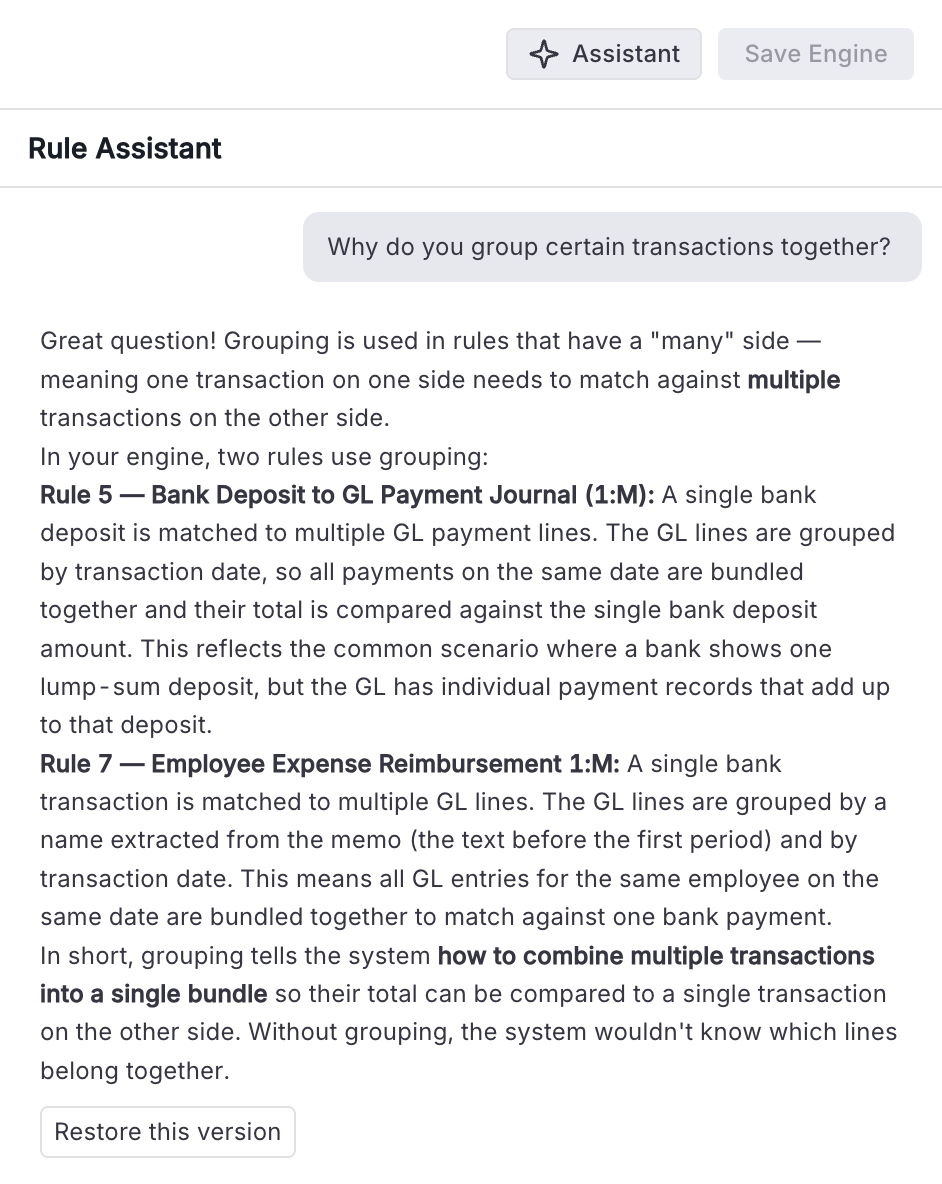
Ask the Assistant to explain why it grouped certain transactions together.
Request adjustments before any rule is built.
If the Assistant builds a rule you want to change, you can restore a previous version through the side panel.
When to Use Match & Create Rule Instead
The Rule Assistant is the right starting point when you don't have existing rules. When you've manually matched transactions in the Transaction Explorer and want to turn that match into a rule, use the Match & Create Rule feature instead. The Rule Assistant will review the manual match and draft a rule based on the underlying match logic.
After the Assistant Builds Rules
Once rules are built and saved, use the Rule Preview to see how they perform against your transaction data. The Rule Preview works like a simulation sandbox — it shows the matches and entries your rules would generate without committing them. Review the match rate, check for unexpected exceptions, and refine rules that aren't behaving as expected.
For details on rule configuration, refer to Building Match Rules with Numeric Cash Management and Building Journal Entry Rules with Numeric Cash Management.
Permissions
Using the Rule Assistant to create or edit rules: Administrator, Manager, and Staff.
Approving rules built by the Assistant: Administrator and Manager.
Need help? Contact your Solutions specialist or reach out to support@numeric.io.