Handling Exceptions and Unmatched Transactions in Numeric Cash Management
Last updated: June 16, 2026
After your Rules Engine runs, most bank and general ledger (GL) transactions match automatically. The ones that do not match are called exceptions.
This guide walks through where to find exceptions, why they happen, and how to resolve them.
What's an Exception?
An exception is any transaction that the Rules Engine couldn't match. The most common types are:
Unmatched bank lines: Bank transactions with no corresponding GL entry.
Unmatched GL lines: GL transactions with no corresponding bank line.
Partial matches: A bank line that matched some, but not all, of a candidate group.
Exceptions block the close until they're resolved or explicitly accepted.
Where to Find Exceptions
The Transaction Explorer is the central view for working through exceptions. To find them:
Open the account.
Navigate to the Transaction Explorer tab.
Filter by match status to surface unmatched bank lines, unmatched GL lines, or both.
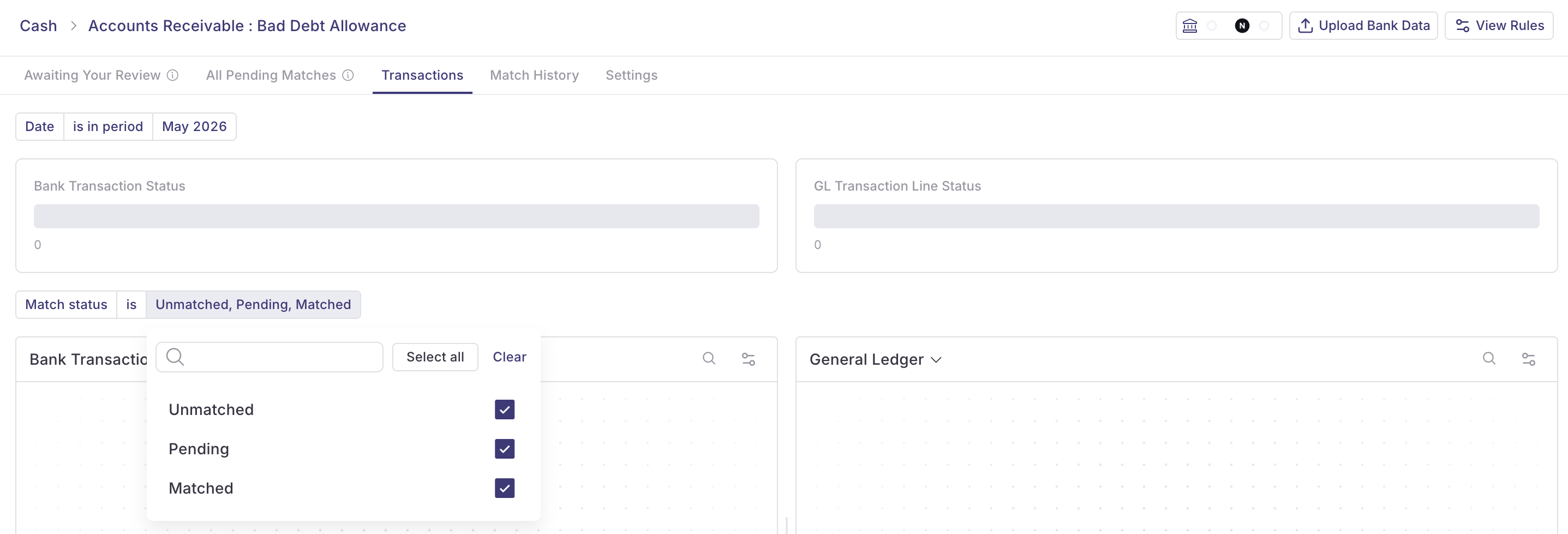
Pending matches awaiting your approval show up in Awaiting Your Review. Matches awaiting anyone's approval show up in All Pending Matches.
Common Causes
Most exceptions fall into one of these buckets:
Missing rule coverage: The transaction type isn't covered by an existing rule. A new vendor, a one-off transaction, or a transaction pattern you haven't built a rule for yet.
Data quality issues: A bank memo is blank, a date is off by a day, or a currency is incorrectly flagged.
Timing differences: A bank transaction posts in one period and the GL entry posts in another.
Manual GL entries: A GL transaction was entered in NetSuite that doesn't correspond to a bank event (for example, an accrual reversal).
Posted with errors: A journal entry was posted with the wrong amount or account.
Resolving Exceptions
You have 4 resolution paths, depending on the cause:
(1) Create a Manual Match
When you can see the matching pair but the engine missed it, create a manual match in the Transaction Explorer. Select the bank line and the GL line, confirm the match, and submit for review.
(2) Build a Rule from the Match
If the match pattern is going to repeat, use Match & Create Rule after the manual match. The Rule Assistant will draft a rule from the match logic so the engine catches it next time. For more, refer to Using the Rule Assistant in Numeric Cash Management.
(3) Refine an Existing Rule
When an exception is caused by a too-narrow rule (for example, a memo filter that excludes a valid variant), refine the rule's data filters or matching conditions to widen coverage. After changing the rule, run a simulation to confirm the fix without breaking other matches.
(4) Defer or Investigate
Some exceptions can't be resolved in the moment. For these:
Add a note explaining the status.
Investigate the underlying NetSuite or bank data.
Loop in your Solutions Manager if the pattern is unfamiliar or the data looks wrong.
When to Escalate
Reach out to your Solutions Manager or support@numeric.io when:
Bank data appears to be missing or duplicated.
A connection has stopped syncing.
A rule is producing matches that look wrong.
You're seeing a pattern of exceptions you can't account for.
For data quality issues with bank feeds specifically, refer to Bank Connections Supported by Numeric Cash Management.
Permissions Reminder
Approving manual matches: depends on reviewer assignment within the rule. Refer to Understanding User Roles in Cash Management.
Need help? Contact your Solutions specialist or reach out to support@numeric.io.