Configuring Account Settings in Numeric Cash Management
Last updated: July 1, 2026
Before you run your first close in Numeric, a few settings need to be in place. These affect how your reconciliation reports display and how Cash Management connects to the rest of your Numeric workspace. Complete them before you run the automation for your fist close period.
Your Solutions Manager will confirm these with you during your pre-close check-in. By that point, your team will have already reviewed the day to day workflow in Numeric including your full listing of rules, how to review outputs and validated how journal entries will post to NetSuite.
All settings live in the same place: navigate to an account in Cash Management and open the "Settings" tab.
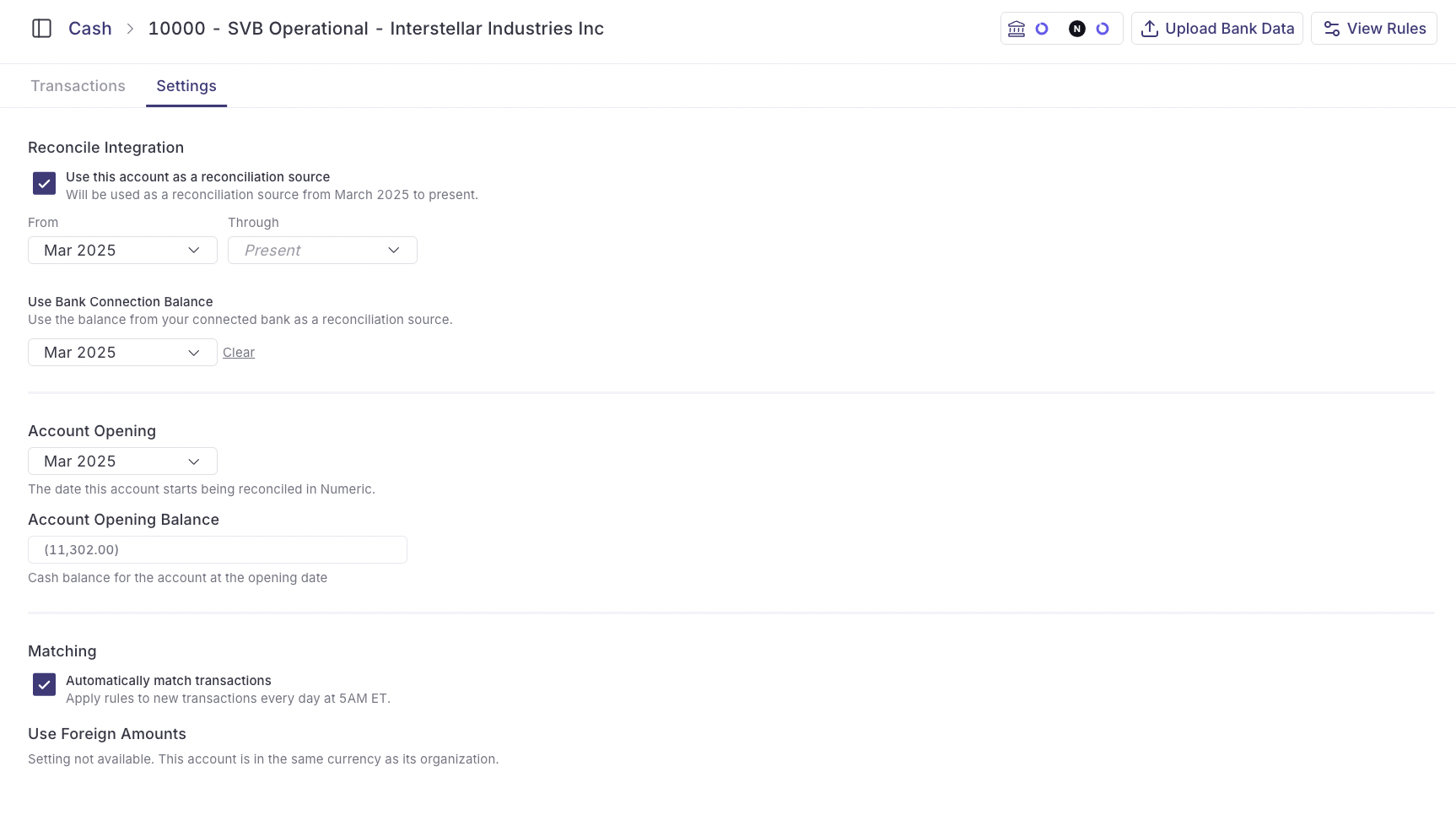
Settings to Configure Before Your First Close
1. Reconcile Integration
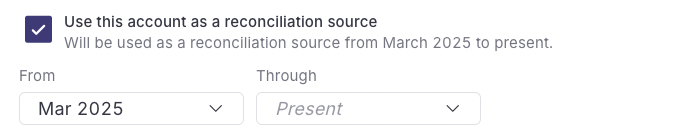
Check "Use this account as a reconciliation source" to connect this cash account to its corresponding reconciliation in Numeric's Reconcile module.
Set the "From" date to the first period you plan to reconcile in Numeric. The "Through" field defaults to "Present" and doesn't need to be changed.
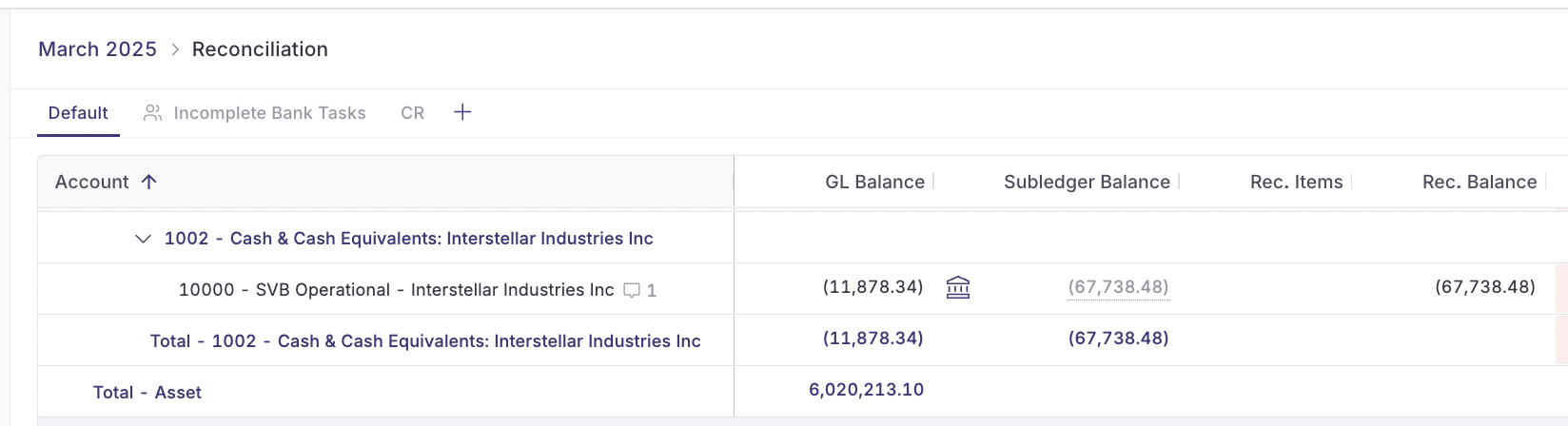
Once enabled, your reconciliation source in Reconcile updates automatically as you match and approve transactions in Cash Management. In the Reconcile module, you'll see a bank icon appear in the "Subledger Balance" column for that account — this confirms the balance is being sourced from the Cash module rather than entered manually.
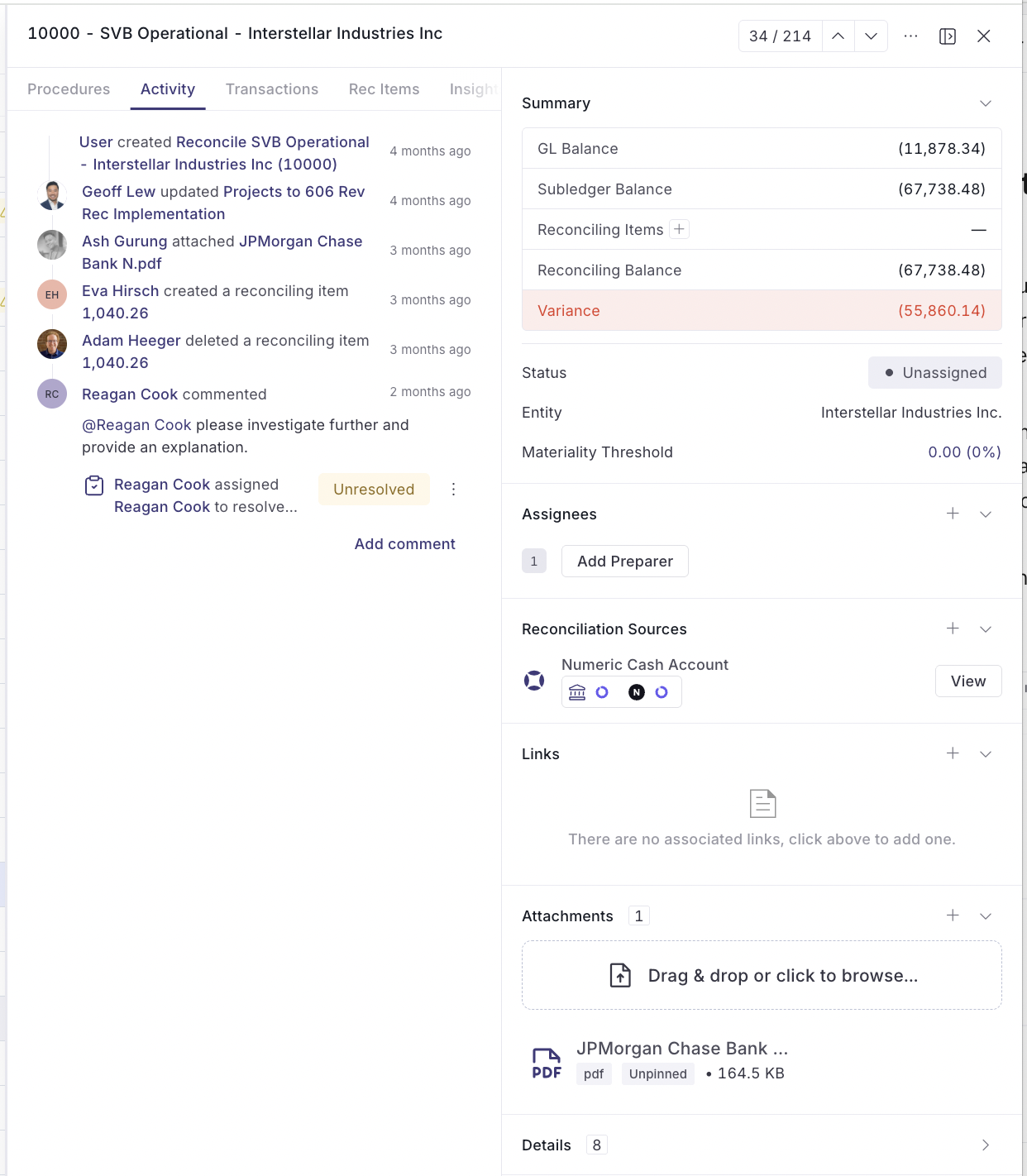
Inside the account, "Numeric Cash Account" will appear under "Reconciliation Sources" with a "View" button that links directly back to the Cash module.
2. Use Bank Connection Balance

Set the "Use Bank Connection Balance" date to the first period you want Numeric to use your connected bank's balance as the reconciliation source in Reconcile. At month end, Numeric pulls the period-end balance from the bank connection and presents it as the subledger balance in your Reconcile view.
"Use Bank Connection Balance" requires "Use this account as a reconciliation source" to be enabled first. This setting is only available for accounts with a live bank connection — manual upload accounts don't support it.
With this set, your Reconcile subledger balance populates automatically at month end from the bank connection. You no longer need to upload a bank statement or enter the balance manually.
3. Account Opening

Set "Account Opening" to the first period you plan to reconcile in Numeric. This is the date Numeric treats as the starting point for this account's reconciliation history.
For example, if you're running a soft close for June before going fully live in July, set it to June.
With this set, your reconciliation reports for that account will use this period as their starting point, and period-over-period reporting will be structured from here forward.
4. Account Opening Balance
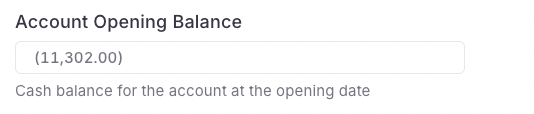
Enter the ending bank balance for this account from the period immediately before your first Numeric close.
For example, if your first close in Numeric is June, enter your ending bank balance as of May 31.
With the opening balance entered, your variance calculations will be accurate from your first close, and your reconciliation reports will reflect the correct starting position for the period.
5. Matching

Check "Automatically match transactions" to enable daily automation for this account. When enabled, Numeric applies your rules to new transactions every day at 5AM ET. When you log in each morning, the previous day's transactions will already be matched and any journal entries drafted, ready for your review.
Without this setting enabled, you run the automation manually each time.
Permissions
Viewing and updating account settings: Administrator.
Need help? Contact your Solutions specialist or reach out to support@numeric.io.