Cash Application in Numeric Cash Management
Last updated: June 16, 2026
Cash Application is the process of applying incoming cash receipts to open customer invoices, and outgoing cash disbursements to open vendor bills. Numeric Cash Management supports both as a layered workflow on top of bank reconciliation: bank lines match directly to open invoices or open bills in NetSuite, and Numeric writes a Payment or Bill Payment record back to NetSuite to clear the open item.
This guide explains how cash application works in Numeric, how to configure the Invoice Match Rule and the Bill Match Rule, and when to layer cash application into your implementation.
How Cash Application Works
The flow is direct on both sides.
For Accounts Receivable (AR) — customer receipts:
A customer pays an invoice, and the funds land in your bank account.
The bank line flows into Numeric through your bank connection.
An Invoice Match Rule matches the bank line to the open invoice in NetSuite.
Numeric writes a Payment record to NetSuite, clearing the open invoice.
For Accounts Payable (AP) — vendor disbursements:
You pay a vendor bill, and the funds leave your bank account.
The bank line flows into Numeric through your bank connection.
A Bill Match Rule matches the bank line to the open bill in NetSuite.
Numeric writes a Bill Payment record to NetSuite, clearing the open bill.
In both directions, the bank line matches the open item directly. Numeric handles the application step by writing the cleared record back to NetSuite — there’s no intermediate journal entry or undeposited funds bridge required.
When to Layer Cash Application In
Most customers layer cash application after first close. The reasoning:
The first close validates that your bank reconciliation rules are working as expected.
Cash application adds a layer of complexity (customer payment workflow, vendor bill workflow, partial payments, open item clearing) that’s easier to introduce once the bank reconciliation foundation is stable.
Your accounting team is more comfortable building the cash application workflow once they’re confident in the daily reviewer rhythm.
Talk to your Solutions Manager about timing. If your volume of customer payments or vendor disbursements is high and manual cash application is a major pain point, it can make sense to bring cash application in earlier.
NetSuite Prerequisite
Cash application on the AR side requires the “Transactions > Customer Payment (Full)” permission in NetSuite to be enabled for the Numeric integration role. Without this permission, Numeric can’t write Payment records back to NetSuite and the application step will fail.
Confirm this permission is enabled before building Invoice Match Rules.
The Invoice Match Rule and Bill Match Rule
Cash application uses 2 dedicated rule types:
Invoice Match Rule: Matches bank deposits to open invoices in NetSuite and writes a Payment record to clear the invoice.
Bill Match Rule: Matches bank disbursements to open bills in NetSuite and writes a Bill Payment record to clear the bill.
Both live in the “Rule Type” dropdown of the rule editor, alongside Match Rule, Journal Entry Draft Rule, Transfer Rule, and Intercompany Transfer Rule.
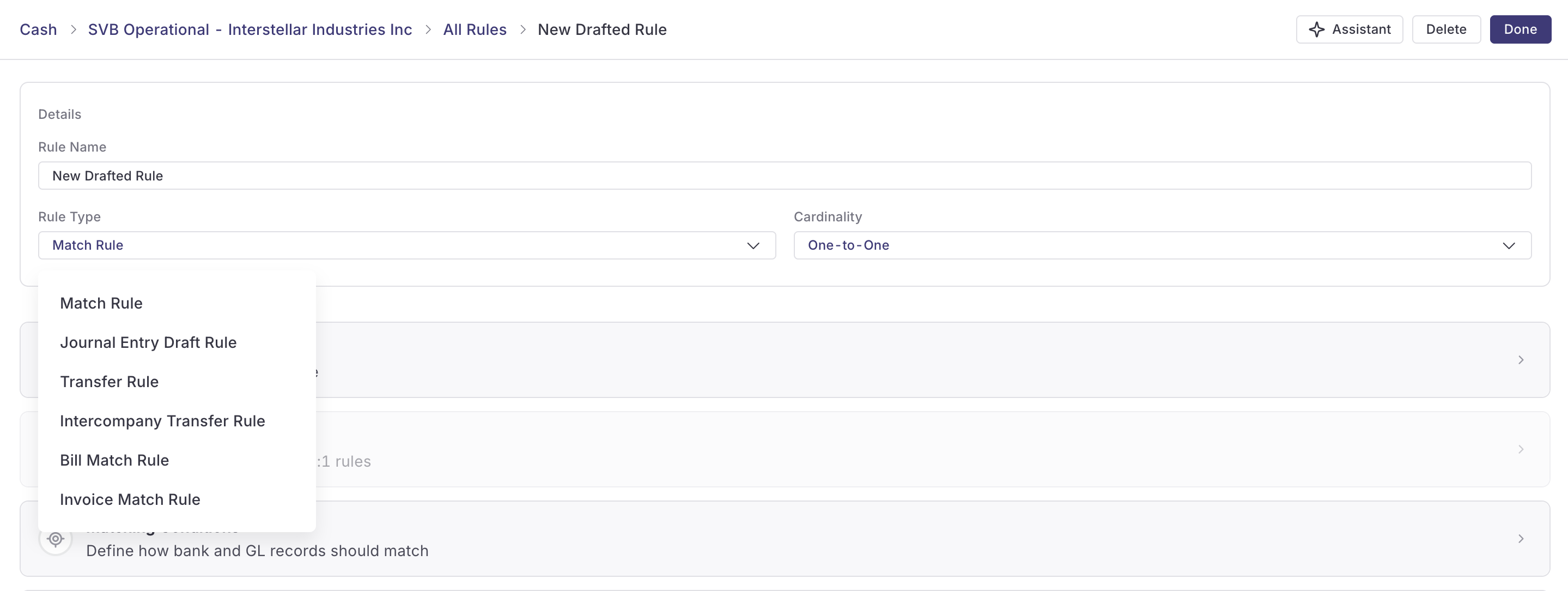
The two rule types follow the same configuration model. The sections below use the Invoice Match Rule as the primary example; the Bill Match Rule works the same way, with “open bill” replacing “open invoice” and “Bill Payment” replacing “Payment.”
Each rule has 3 configuration blocks:
Matching conditions: Define how Numeric identifies which open invoice or bill a bank line should match.
“Payment” (or “Bill Payment” for Bill Match Rules): Define how the Payment or Bill Payment record is created in NetSuite when a match fires.
“Journal Entry” (optional): Define how partial payment differences are auto-adjusted with a journal entry.
Like all other rule types, Invoice Match Rules and Bill Match Rules are account-specific. Each cash account maintains its own rule set, and rules don’t transfer between accounts. To build cash application rules for another account, navigate to that account and create the rules there.
Configuring Matching Conditions
The matching logic uses the same framework as standard Match Rules — data filters and matching conditions on memo, counterparty, amount, and other fields. For configuration details, refer to Building Match Rules with Numeric Cash Management.
The Rule Assistant works for Invoice Match Rules and Bill Match Rules too. For prompting guidance, refer to Using the Rule Assistant in Numeric Cash Management.
Configuring the Payment
The “Payment” section defines what the Payment record looks like when it’s written back to NetSuite. For Bill Match Rules, the equivalent section configures the Bill Payment record. Three fields:
“Posting Date”: The date the Payment posts in NetSuite.
“Amount”: Defaults to “From matched amount,” meaning the Payment amount mirrors the matched bank line. You can override with a specific amount if needed.
“Description”: The Payment description. Supports template variables to populate dynamically — for example, Payment for: {{invoice_name}} inserts the matched invoice’s name into the description.
When the rule fires, Numeric combines the “Payment” configuration with the matched invoice or bill details and writes the result to NetSuite.
[Image placeholder: The “Payment” configuration block on an Invoice Match Rule showing Posting Date, Amount, and Description fields with the {{invoice_name}} template variable in the Description.]
Handling Partial Payments
A partial payment is a bank line that doesn’t fully cover the open invoice or bill amount. Two toggles work together to handle these.
Allow Partial Payment Matches
The “Allow partial payment matches” toggle controls whether the rule will match bank lines that don’t fully clear the open item. When disabled, only bank lines that match the full amount will match. When enabled, the rule opens up to bank lines that cover a portion of the amount.
Auto-Adjust Partial Differences with a Journal Entry
When “Allow partial payment matches” is on, you can also enable “Auto-adjust partial differences with a journal entry.” This expands a “Journal Entry” template inside the rule. Numeric posts a journal entry for the partial payment difference so the open item still clears.
The “Journal Entry” template that appears here is structurally identical to a Journal Entry Draft Rule’s template:
“Posting date” has 3 options: Bank posting date, End of period, Current date.
“Transaction type” is locked to “Journal entry.”
“Transaction memo” defaults to “Template created through the rule editor.”
Transaction Lines: Line 1 defaults to “Impacted Cash Account” at 100% debit. Line 2 is configured by you with the offsetting account at 100% credit. Add additional lines with “Add Line.”
The “Some line accounts are not specified” warning appears when any line in the “Journal Entry” template lacks an account assignment. The rule won’t draft entries until every line has an account specified.
[Image placeholder: The “Journal Entry” section expanded under “Auto-adjust partial differences with a journal entry,” showing line 1 as “Impacted Cash Account” at 100% debit and line 2 with an unspecified offsetting account at 100% credit.]
For full details on the “Journal Entry” template fields, refer to Configuring the Journal Entry Template in Numeric Cash Management.
Previewing Cash Application Rules
Once an Invoice Match Rule or Bill Match Rule is built, use the Rule Preview to see how it performs against your data before saving. The Rule Preview shows the matches and Payment or Bill Payment records the rule would generate without committing them — the same preview surface used for other rule types.
What’s In Scope Today
Cash application in Numeric handles:
Matching bank deposits directly to open invoices in NetSuite and writing Payment records to clear them.
Matching bank disbursements directly to open bills in NetSuite and writing Bill Payment records to clear them.
Handling partial payments through configurable rule toggles and auto-adjusting journal entries.
Surfacing unmatched bank deposits and disbursements as exceptions for review.
What’s outside the current scope:
Customer AR aging, dunning workflows, or open invoice management.
Vendor AP aging or open bill management.
Customer payment or vendor disbursement processing outside the bank deposit and disbursement flows.
For AR aging, dunning, AP aging, or open item management, NetSuite remains the primary tool.
Permissions
Building Invoice Match Rules and Bill Match Rules: Administrator, Manager, and Staff.
Approving Payment records, Bill Payment records, and partial payment journal entries: depends on reviewer assignment within the rule. Refer to Understanding User Roles in Cash Management.
Need help? Contact your Solutions specialist or reach out to support@numeric.io.