Workflow Approval Considerations
Last updated: October 26, 2026
Before going live with Cash Management, it's worth deciding how matches and journal entries will be reviewed and approved. Numeric lets you assign reviewers at the account or rule level, auto-approve trusted rules, and hand journal entries off to NetSuite for a second approval.
This article covers the main decisions to make when designing your approval workflow and the trade-offs of each, so your team can strike the right balance between automation and control.
Assigning Reviewers: Account Level vs. Rule Level
Numeric gives you two places to decide who reviews the matches and journal entries the rules engine produces.
Account-level default reviewer
In each cash account's Settings tab, you can assign a default preparer and default reviewer. Matches generated for that account go straight to the default reviewer's queue.
Best for: Teams where one person owns the review of an entire bank account, such as an operating account reviewed by the same accountant every month.
Benefit: Set it once, and every match on the account has a clear owner without configuring each rule.
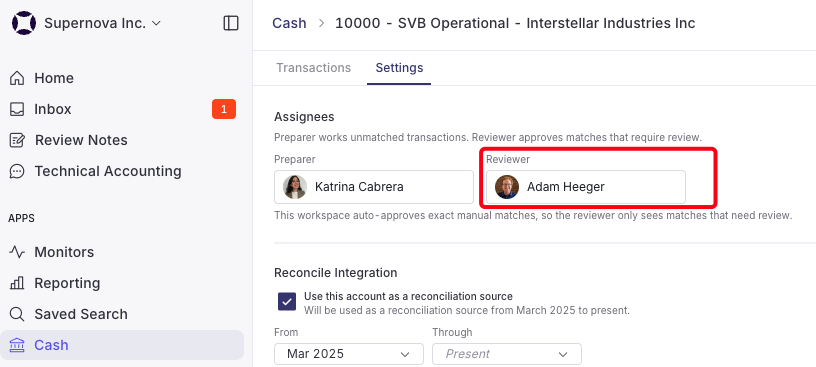
Rule-level reviewer
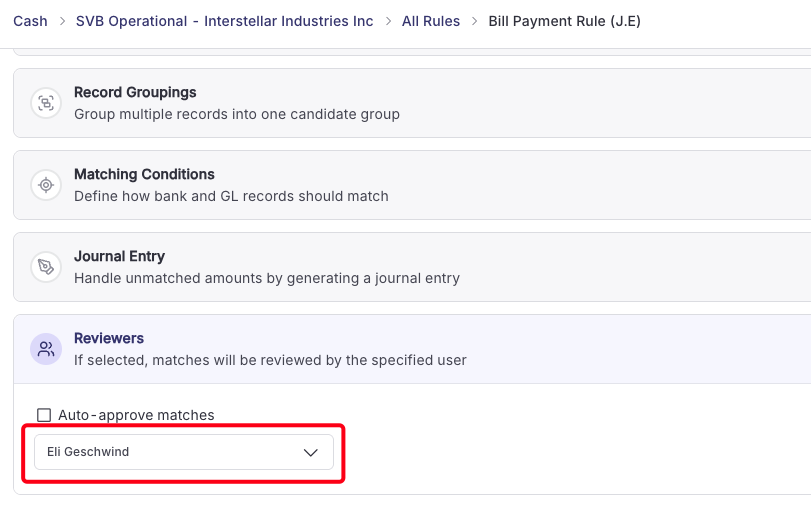
Each rule has its own Reviewers section, where you can assign a specific reviewer for the matches and journal entries that rule generates.
Best for: Accounts with a mix of activity that different people should review. For example, payroll entries reviewed by your payroll accountant, and intercompany transfers reviewed by your consolidation lead.
Benefit: Routes each transaction type to the person with the most context.
Tip: Most teams start with an account-level default reviewer, then add rule-level reviewers only where a specific rule needs a different owner.
Who can approve
Who can approve a match depends on whether a reviewer has been assigned:
Reviewer assigned: Administrators, Managers, and Staff assigned as the reviewer can approve.
No reviewer assigned: Only Administrators can approve.
Assigning reviewers keeps the work from piling up with your Administrators. For the full permissions breakdown, please see Understanding User Roles in Cash Management.
What Journal Entry Statuses Mean
When a rule drafts a journal entry, the entry moves through a series of statuses on its way to NetSuite:
Assigned: A preparer is working on the match. Nothing has been sent to NetSuite.
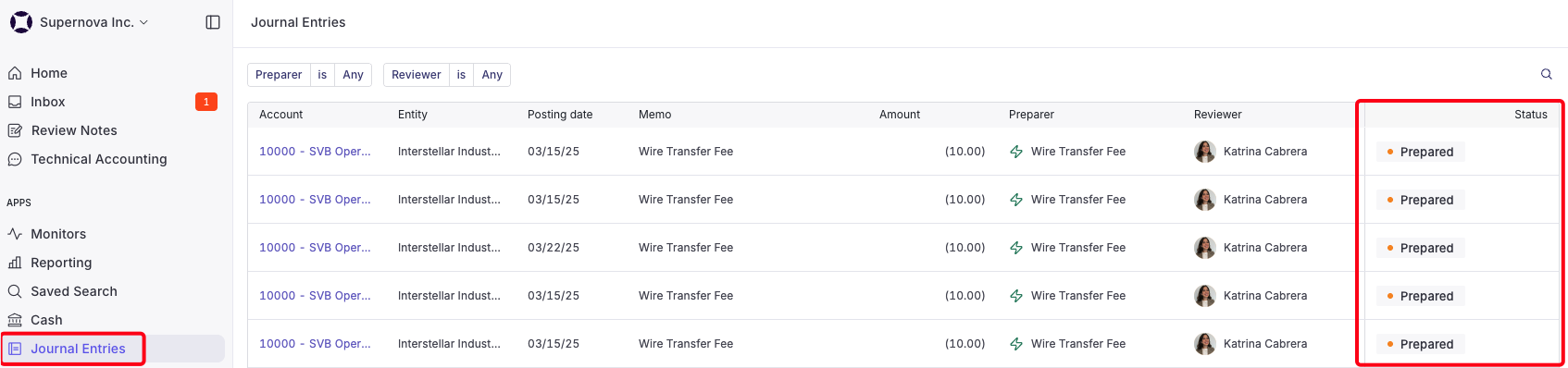
Prepared: The journal entry is drafted and waiting for a reviewer in Numeric.
Posted, pending data: The reviewer approved the entry and Numeric sent it to NetSuite, but Numeric hasn't yet confirmed it as approved. If you use a NetSuite approval workflow, entries stay here until they're approved in NetSuite.
Posted: The entry is approved in NetSuite and synced back to Numeric. The match is complete.
Entries can also show Rejected, Posting error, or Broken if something goes wrong. For a full explanation of each status and what to do, see Understanding Journal Entry Statuses in Cash Management.
Adding a Second Review in NetSuite
Some teams want a final check in NetSuite before entries hit the general ledger. This is common for teams that already use NetSuite's journal entry approvals, or that need an extra control layer for audit.
How it works
In Numeric, an Administrator turns on the workspace setting Post transactions as pending approval rather than approved (Settings → Workspace → Cash Management).
In NetSuite, your team uses journal entry approvals, either by turning on Require Approvals on Journal Entries in your accounting preferences or through a custom SuiteFlow approval workflow.
When a reviewer approves an entry in Numeric, it posts to NetSuite in a pending approval state instead of hitting the general ledger right away.
A designated approver reviews and approves the entry in NetSuite.
On Numeric's next NetSuite sync, the entry's status changes from Posted, pending data to Posted.
When to use it
Turn it on if NetSuite is your system of record for approvals, or your auditors expect journal entries to be approved in NetSuite.
Leave it off if your team treats Numeric's approval as the final sign-off and wants entries to post directly.
Keep in mind: With a NetSuite approval step, a match isn't complete until the entry is approved in NetSuite. Entries waiting in NetSuite stay in Posted, pending data, so build the NetSuite approval into your daily or weekly review cadence to avoid a backlog at month-end.
For more on this setting, see Workspace Settings for Numeric Cash Management.
Auto-Approval vs. Designated Approvers
Every rule can either send its output to a reviewer or approve it automatically. The right choice depends on how predictable the transactions are and how much review your controls require.
Designated approvers
A reviewer looks at every match or journal entry before it's finalized.
Pros: Full visibility into every entry, a clear audit trail of who approved what, and a chance to catch rule mistakes before they reach NetSuite.
Cons: More manual work, and it can create a bottleneck at month-end if the queue isn't cleared regularly.
Best for: New rules, high-dollar or unusual transactions, journal entries that hit sensitive accounts, and anything your auditors want reviewed.
Auto-approval
The rule's matches or journal entries are approved automatically, with no one reviewing them first.
Pros: Saves the most time, keeps your queue focused on transactions that need attention, and keeps your books current day to day.
Cons: Mistakes in a rule flow straight through, so the rule needs to be reliable first.
Best for: High-volume, predictable, low-risk transactions like recurring bank fees, standard payroll funding, or internal transfers between your own accounts.
To use auto-approval, an Administrator must first enable it at the workspace level (Settings → Workspace). Each rule then opts in individually. Turning on the workspace setting doesn't auto-approve any existing rules. For non-match rules, such as journal entry draft and transfer rules, the Allow auto-approve of non-match rules setting must also be on.
Recommended approach
Start with designated reviewers on every new rule.
Watch the rule's results for a full close cycle or two. If the reviewer consistently approves without changes, the rule is a good candidate for auto-approval.
Turn on auto-approval for those proven, low-risk rules.
Spot-check auto-approved activity in Match History periodically, especially after rule edits.
Tip: You don't have to choose one approach for your whole workspace. Most teams auto-approve their most predictable rules and keep designated reviewers on everything else.
Related Articles
Need help? Contact your Solutions specialist or reach out to support@numeric.io.