Navigating the Left Sidebar in Flux Analysis
Last updated: October 13, 2025
This feature is only available to transaction lines/warehouse enabled Workspaces.
The left sidebar provides detailed insights into your financial data and is a powerful tool for investigating trends, variances, and underlying transactions.
Accessing the Left Sidebar
Click into any account to open the left sidebar. This example uses Account 5636 for Software Expenses.
Key Features
1. Trends
View Trends on the top of the left sidebar.
Displays the account’s value over time.
Hover over the comment icon to review or copy explanations for fluctuations in specific months.
2. Transactions
View Transactions on the top of the left sidebar.
View detailed transactions for the currently displayed period.
Pivot data by counterparty, department, or other fields — now with past period, current period, and variance amounts and percentages shown inline.
Sort by variance within in the transaction drawer pivot view by clicking on the “Amount” column.
Create charts from your Transaction Drawer.
Instructions:
Select your data.
Right-click → Go to Pivot Chart or Chart Range →
Customize your chart by click the 3 lines in the right side of your chart to reveal Chart settings.
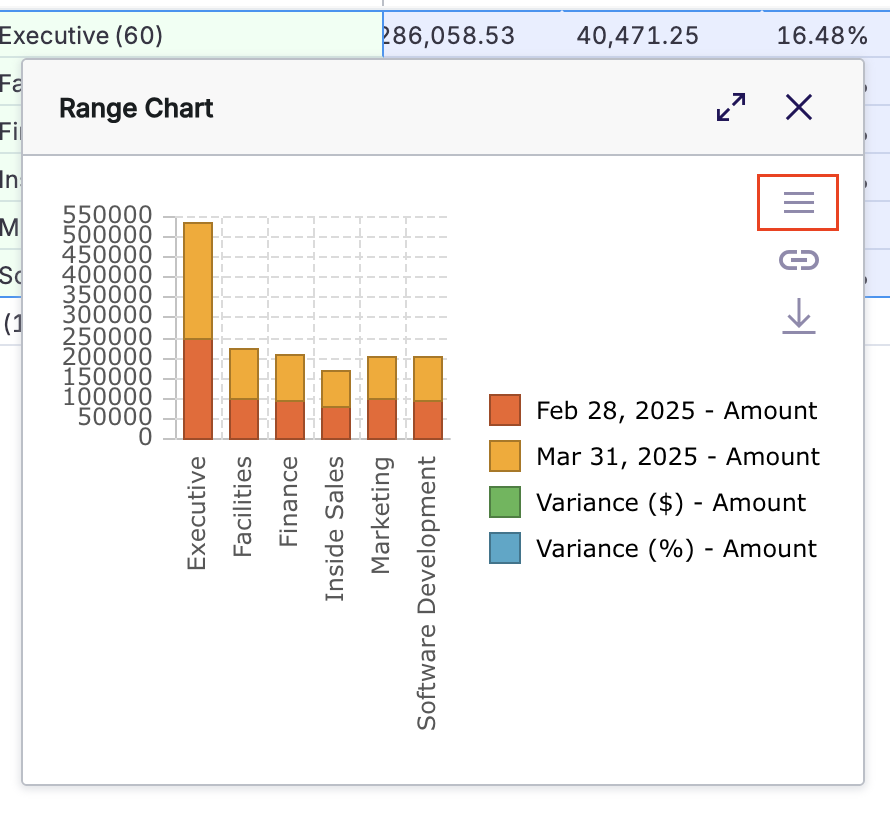
Refine your chart using the options in Settings, Data, and Format.
The chart may also exported by clicking the export button.