Numeric MCP Tips
Last updated: April 23, 2026
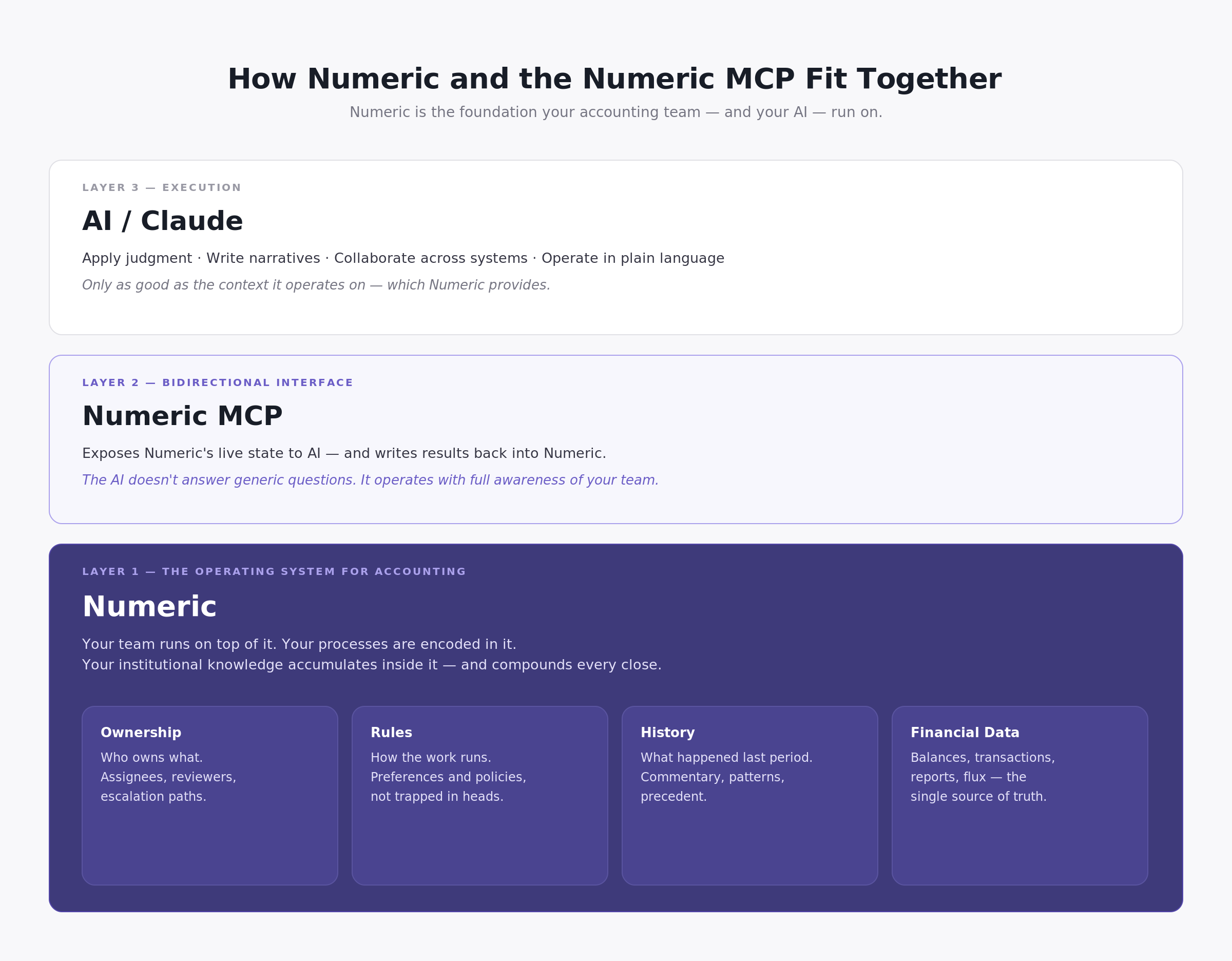
How Numeric and the Numeric MCP Fit Together
Numeric is the operating system for your accounting team. Like any OS, it manages state — who owns what, what's been done, what the rules are, what happened last period. Your team runs on top of it. Your processes are encoded in it. Your institutional knowledge accumulates inside it.
Use task descriptions to store how a workflow should run. Reference prior period commentary to understand recurring patterns. Record preferences, exceptions, and policies directly in Numeric so they carry forward automatically — not locked in someone's head or buried in a spreadsheet.
The Numeric MCP is what lets your AI run on that operating system. It exposes Numeric's full state to Claude — live tasks, financial data, team structure, history, commentary — and it's bidirectional. The AI doesn't just read; it writes results back, updates tasks, posts comments, and keeps the record current. An AI connected via the MCP isn't answering generic questions; it's operating with full awareness of your team and where things stand right now.
Together, the MCP supercharges what Numeric can do natively. Numeric tracks the work — the MCP executes it. Draft flux explanations across every assigned account in one run. Identify accrual candidates from transaction history and post the journal entries. Send targeted Slack reminders based on who's behind and what preferences you've set. Everything that would otherwise require manual steps, a separate script, or a tool outside Numeric can now happen directly from a conversation — with results written back into Numeric where they belong.
Tips for leveraging the MCP
Use your close checklist to drive automations
Your Numeric close checklist is more than a task list — it's the control plane for your close workflow. Skills read task status, due dates, assignees, and descriptions directly from the checklist, which means your existing tasks can help to drive your workflows by instructing your AI to take specific actions.
For example: create an Accruals task in Numeric with a due date of day 3. The accrual skill reads the list of tasks, knows what's expected and if any need to be handled, runs the workflow, and marks it complete — all triggered by a single instruction.
Use task descriptions to carry preferences and instructions forward
You can store workflow preferences and specific instructions directly in a task description, and the skill will read them on every run. Use this to note any changes you want applied going forward — no need to re-specify them each time.
## Skill preferences
- Reminder cadence: only send nudges if 48+ hours since last reminder
- Output format: Excel workbook, save to /Close Workpapers/Prepaid/
- Reviewer: Tag Sarah in the Slack message when complete
Let Claude Skills self-track via comments
Skills can automatically log a comment on the relevant Numeric task after they run — recording what was done, when, and what the outcome was. This creates a native audit trail inside Numeric and lets skills make smart decisions on subsequent runs. For example, the overdue nudge skill will check the comment history before sending a reminder, so it won't re-notify someone if they were already nudged in the last 48 hours.
If a Claude Skill doesn't trigger automatically, be explicit
Skills activate based on how you phrase your request. If Claude responds without using the right skill, just tell it directly which one to use:
"Use the close-pulse skill to show me where the close stands." "Run the automatically-draft-flux-explanations skill for this period."
You can also ask Claude which skills are available: "What skills do you have installed?"
Customize a Claude Skill to fit your workflow
Once installed, any skill can be refined to match your team's specific process. Open a conversation and ask Claude:
"Update the close-pulse skill so that it always groups overdue tasks by assignee first, skips tasks tagged 'on hold', and posts the summary to #accounting-close in Slack instead of responding in chat."
Claude will modify the skill in place. Your customized version becomes the default for future runs — no coding required. Combine with task descriptions to give Claude a 'working memory'.
Community & Contributing
We welcome new use cases or Claude Skills — if you've built a workflow that saves your team time, share it and let others benefit too.
Apart from the Use Cases outlined in this Knowledge Base, other MCP Skills from our community can be found here.
How to contribute a use case or Claude Skill
The easiest way: build the workflow you want in Claude, then ask it to "bundle this into a skill". Claude will package it into the right format. Send it to support@numeric.io and we'll add it to the toolkit.
Have an idea?
We're happy to help design and build new skills with you — whether it's a manual process you've been repeating every close, a recurring deliverable, or a workflow that would save your team hours each month. Reach out to support@numeric.io and tell us what you're trying to do.