Connecting QuickBooks
Last updated: January 15, 2025
Adding a Quickbooks Online (QBO) Connection
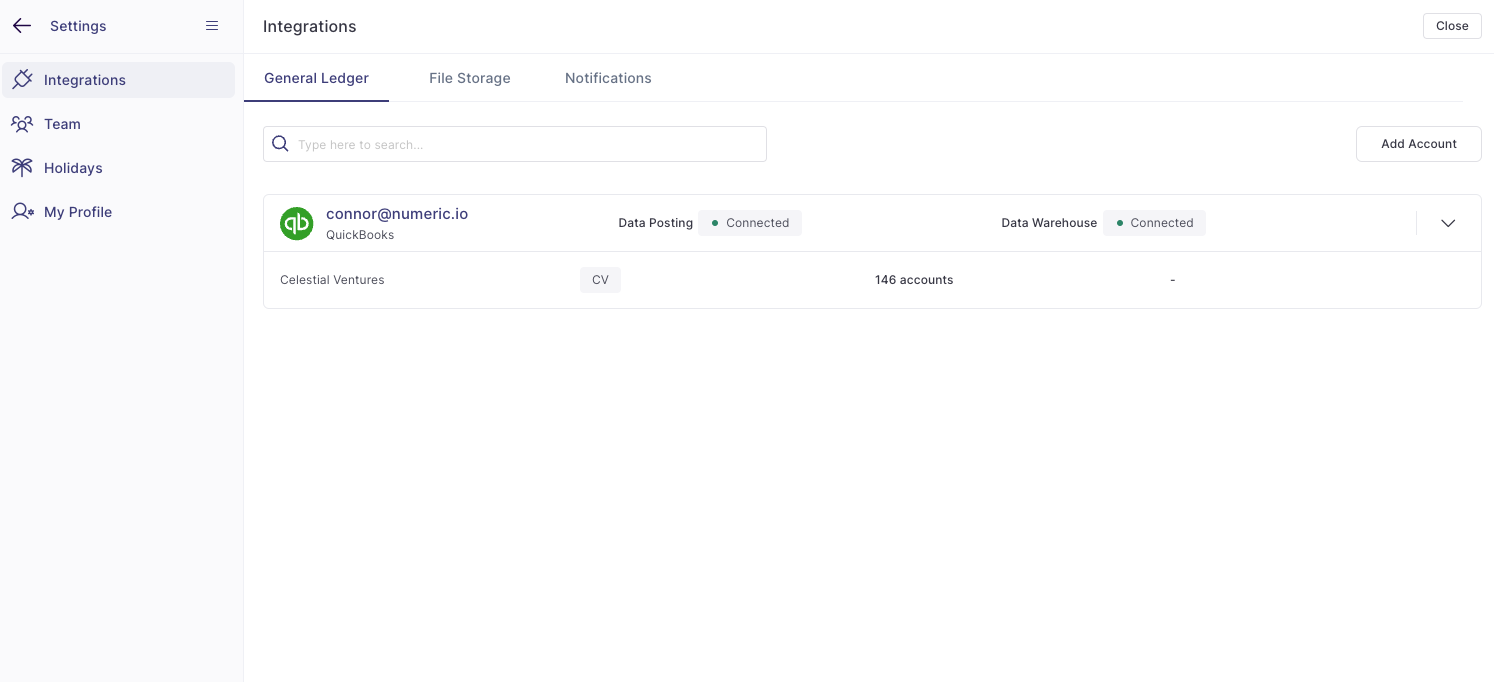
Head into the Settings
Click + Add Account in the General Ledger section
Select QuickBooks
In the new QuickBooks login window, enter your QuickBooks credentials and login
Select the QuickBooks organizations you’d like to connect and submit
🎉 Your GL is now connected, and will be refreshed within each Close period to provide you a live data feed for account reconciliations and flux analysis!
💡 Have multiple entities split across multiple accounting systems? You can integrate multiple accounts in Numeric!

Refreshing your Quickbooks Online (QBO) Connection
Numeric automatically refreshes your QBO every few minutes when you're logged into Numeric and using Reconciliation or Flux analysis. However, you can also force a refresh for QBO by clicking on the "Integrations" button at the top of the Reconciliation or Flux pages.

Connecting the QBO Transaction Warehouse
Overview
This guide walks through the necessary steps to activate the QBO transaction warehouse, which powers GL transaction line syncing in the subledgers product!
These instructions can only be completed after you have been enrolled in the subledgers beta. Reach out to your Numeric Solutions contact or reach us at support@numeric.io to continue.
Step-by-step
First please ensure you are logged out of QBO before beginning this process as you will later be asked to log in.
Login to your Numeric account and click the gear on the bottom-left navigation bar to head into Settings > General Ledger
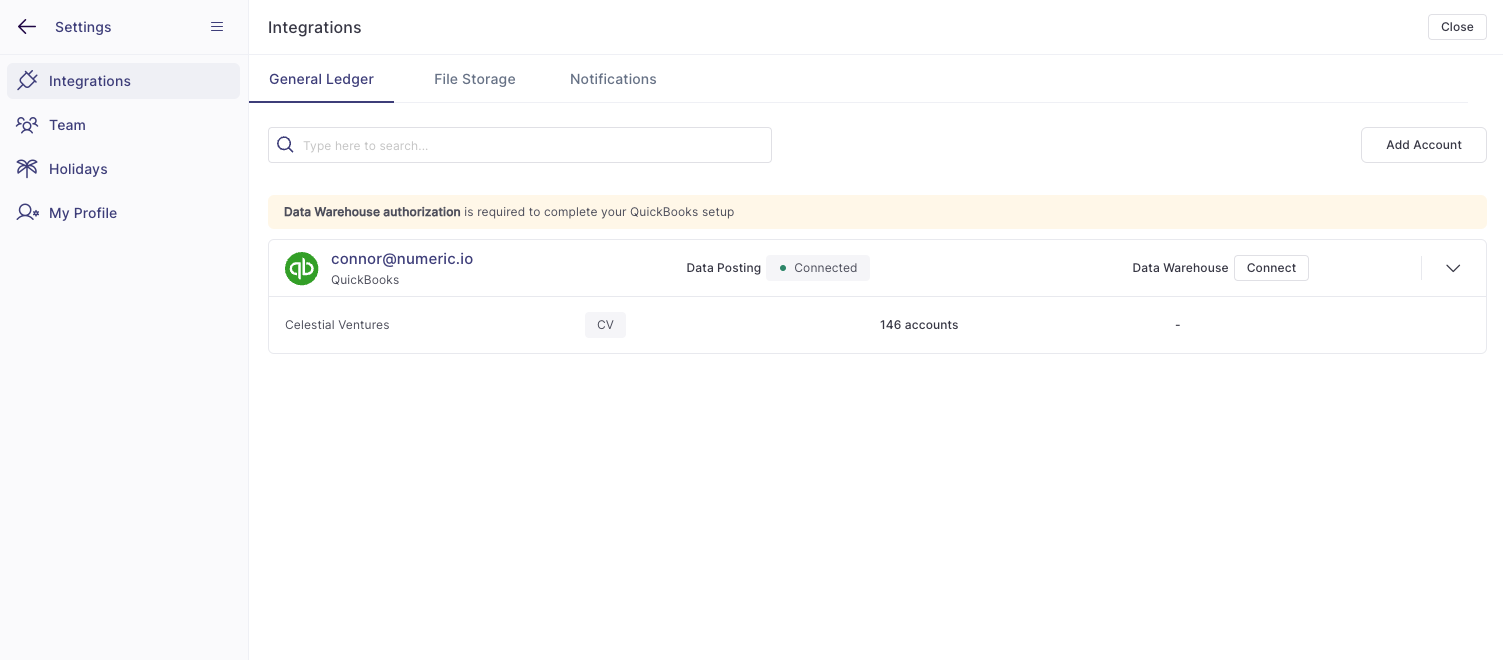
Clicking the "connect" button next to "Data Warehouse" which will launch a new window with a connect card:
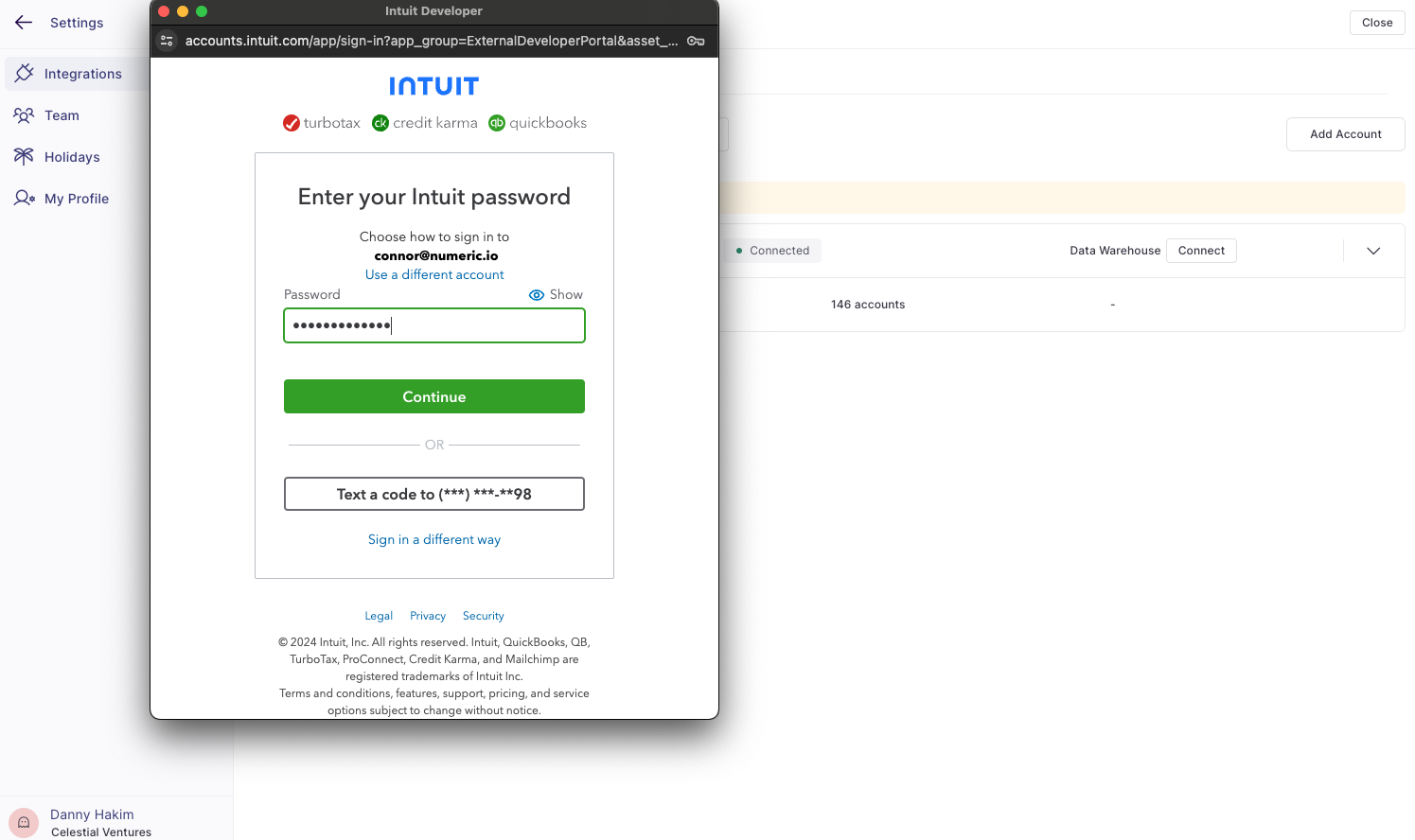
After logging in, the popup will close and the settings page will refresh showing a successful warehouse connection: