Using Calendar View to Visualize Your Tasks
Last updated: March 9, 2026
This guide shows you how to use Calendar View to see your close tasks laid out by date, making it easier to spot what's due, plan your week, and keep your close on track.
Calendar view requires at least one task with a due date in the current period. Only current period tasks will show up in the calendar. While you can view tasks in one period with due dates across multiple months, Calendar View does not currently support showing tasks across multiple periods.
Steps
1. Navigate to Your Desired Period
Navigate to the Overview tab of the desired period in Numeric. You can find your periods listed on the home page or via the left sidebar.

2. Switch to Calendar View
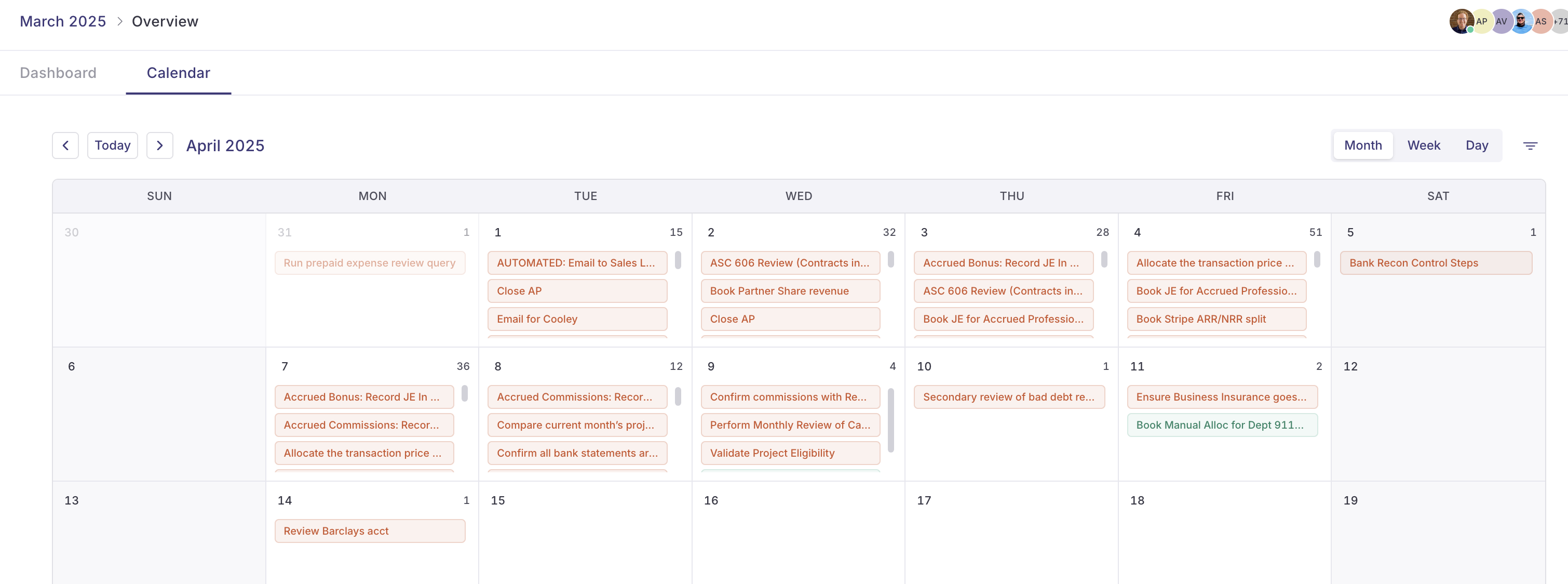
Click the Calendar tab at the top of the page, next to Dashboard. The view will switch to
show your tasks laid out by date.
3. Choose Your Time Scale
Use the Month, Week, and Day buttons in the top-right to switch between views:
Month: See all tasks across the full month
Week: Focus on a single week with more detail
Day: Drill into a specific day
The total number of tasks due on a specific day will show to the right next to the date.
Tasks are split between Preparers and Reviewers (i.e. a task with a preparer and reviewer assigned will show up in the Calendar View once each of the respective due date for each assignee). This allows for individual to accommodate filtering for tasks due on a certain date by assignee.
4. Navigate Between Dates
Use the arrow buttons at the top to move forward or backward in time. Click Today to jump back to the current date.
5. View Task/ Details
Click any task on the calendar to open its detail panel on the right. From here you can see the task name, assignee, due date, and status. Completing the task card in the Calendar View is the same as completing a task card in the respective module.
6. Filter Tasks
Click the Filters button to narrow the calendar to specific assignees, statuses, properties or task types.
Common Issues
No tasks appear: Make sure your tasks have due dates assigned. Tasks without due dates won't show on the calendar.
Can't find Calendar View: Look for the Calendar tab next to Dashboard at the top of the close page. If you don't see it, check that your close has at least one task with a due date.