Properties: Categorize Your Close
Last updated: July 14, 2026
Properties are custom fields you apply to tasks (and reconciliation accounts) to organize your work the way your team thinks about it. Once a property is applied, you can group by it, filter on it, add it as a column, build Saved Views around it, and include it in exports. This article walks through the kinds of properties available and how teams typically use them.
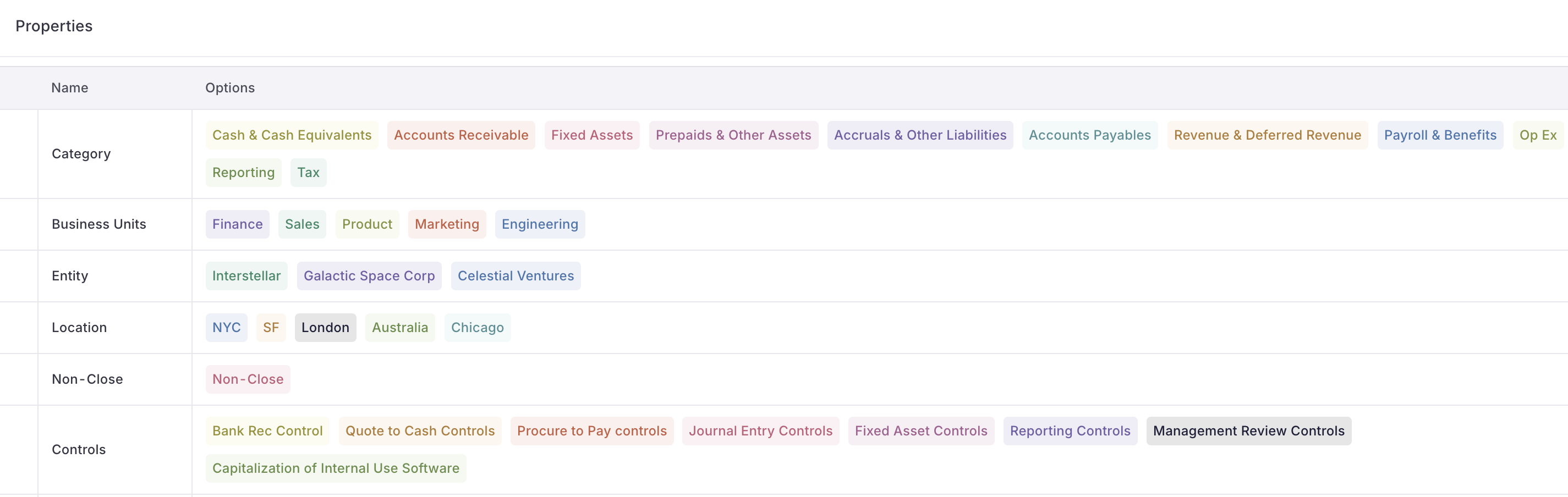
What is a Property?
A property is a labeled field with a defined set of values. You apply values to tasks (individually or in bulk), and Numeric then lets you slice your Checklist by those values.
Properties can hold a single value or multiple values per task, depending on how the property is configured:
Single-value properties are best when only one value should ever apply at a time (for example, a task belongs to one Category).
Multi-value properties act like tags, letting a task carry several labels at once (for example, a task tagged both Audit and Revenue).
Properties appear as columns in both the Checklist and the Template, and they are included when you export to Excel or CSV (comma-separated values).
Default Property: Category
Category is the built-in property that organizes your Checklist. A few things make it distinct from other properties:
Category is required — every task must have a Category, and it is one of the required columns when you import a checklist.
Category is single-value: a task belongs to one Category at a time.
Category drives grouping and ordering in your Checklist and Template.
When a reconciliation account is assigned a Category, Numeric automatically surfaces a matching reconciliation task in the Checklist under that Category. Clearing the Category removes the account from the Checklist while keeping it available in Reconcile.
For more on managing Categories, see Manage Checklist Categories.
Popular Properties & How Teams Use Them
Financial statement line item (FSLI): Group tasks by the account or line item they support (e.g. Cash, Prepaids, Revenue). Most teams use the default Category property for this, so it's a natural place to start.
Entity: One tag per entity. An easy way to see which tasks relate to which entity when looking across the full Checklist.
Office location / country: Organize tasks by the office or country they belong to, helpful for teams with a global footprint.
Business unit: Separate tasks by function, such as Finance, Sales, or Product.
Workstream: Distinguish the kind of work a task belongs to, such as month-end close vs. audit.
Process / class of transaction (COT): Tag tasks by the process they fall under, e.g. Bank Reconciliation (BR), Quote to Cash (QTC), Procure to Pay (PTP), or Capitalization of Internal-Use Software (CAP).
Controls: Tag control-related tasks, either by specific control name or by type (e.g. management review controls).
Inherent risk: Flag the level of inherent risk associated with a task (e.g. High, Medium, Low).
Control risk: Flag the level of control risk associated with a task (e.g. High, Medium, Low).
Effort required: Indicate how much effort a task takes (e.g. High, Medium, Low) to spot where time is going.
Non-close: Tag any tasks that fall outside your close so they don't count toward close pacing or percent-complete.
Blocked vs. not blocked: Flag whether a task is blocking another task in Numeric, so dependencies are easy to spot.
Milestone: Group tasks by close milestone (e.g. Milestone 1, Milestone 2) to track progress in stages.
Time to completion: Note how long a task typically takes, helpful for planning and workload balancing.
Relevant US GAAP tax form: Tag tasks tied to a specific filing (e.g. Form 8990) so form-related work is easy to pull together.
Subteam: Organize tasks by the team that owns them, such as Revenue, FinOps, or Tax.
Reporting frequency: Distinguish tasks by cadence, such as Quarterly vs. Monthly.
System: For teams on multiple systems, denote which one a task relates to (e.g. NetSuite, QuickBooks).
Custom frequency: Tag tasks by a specific period so you can isolate them (e.g. a "September" property for tasks that only occur then).
Key dates: Tag tasks by the business day they're tied to (e.g. BD5, BD7) so you can group work by when it's due in the close.
Flux tags: Distinguish the state of a flux task, such as needs context vs. review note to address.