Determine Historical Transaction Volume in NetSuite
Last updated: January 31, 2026
To calculate and analyze historical transaction volumes using transaction lines, follow these steps:
Create a New Saved Search
In an Accounting Center access role, navigate to:
Reports > Saved Searches > All Saved Searches > Newor,In the Administrator role, navigate
Lists > Searches > Saved Searches > New.Select
Transactionas the search type.
Add Search Filters
Go to the
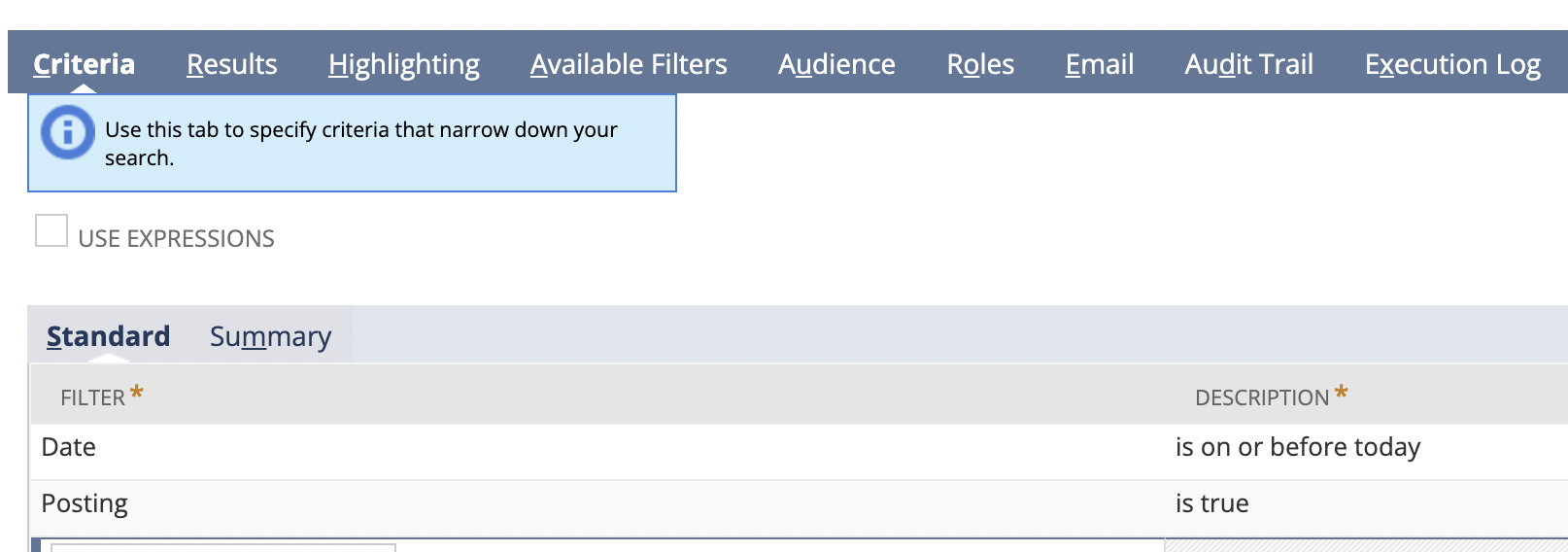
Criteriatab and add the following filters:Date: Define the date range (e.g., is on or before today).
Posting = Yes: Ensure only posted transactions are included. The filter will present as Posting "is true" once added.
Sort and Summarize Results
Go to the
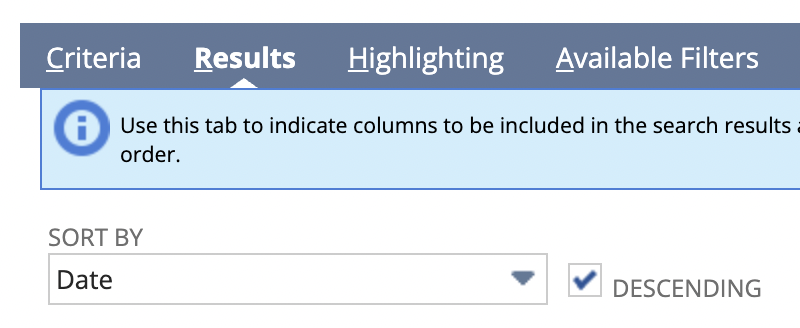
Resultstab.Sort the results by the grouped
Datefield to display them in chronological order by month by selecting "Descending" check box.
Set Results Fields
Go to the
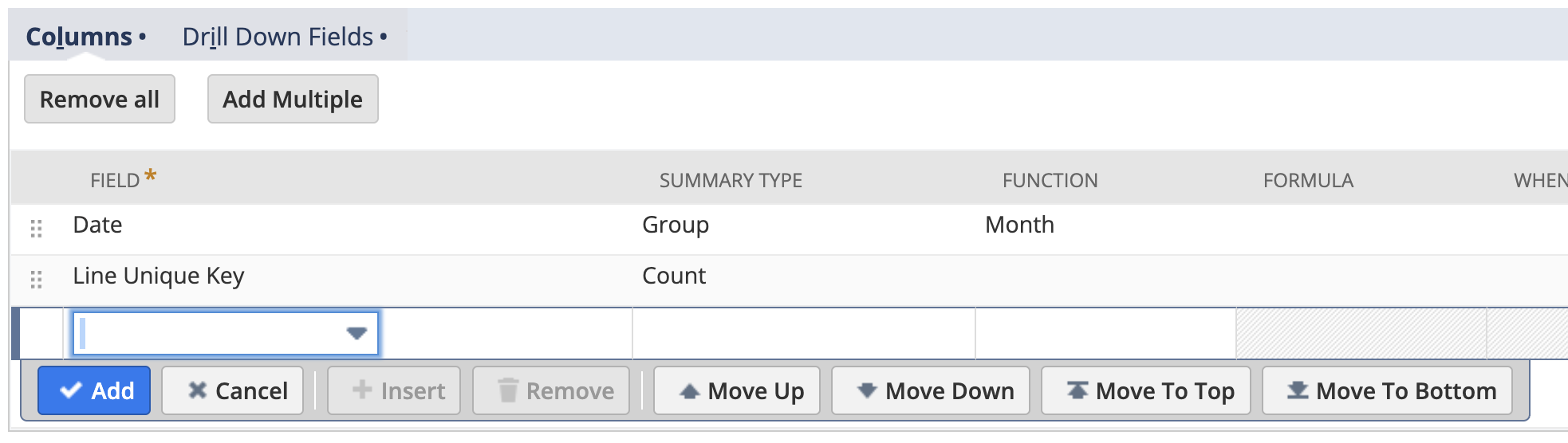
Resultstab and configure the following fields:Date:
Set the summary type to
Group. To do this, select the cell in column "Summary Type".Set the function column to
Month. To do this, select the cell in column "Function."
Line Unique Key:
Set the summary type to
Countto get the transaction line count per day.
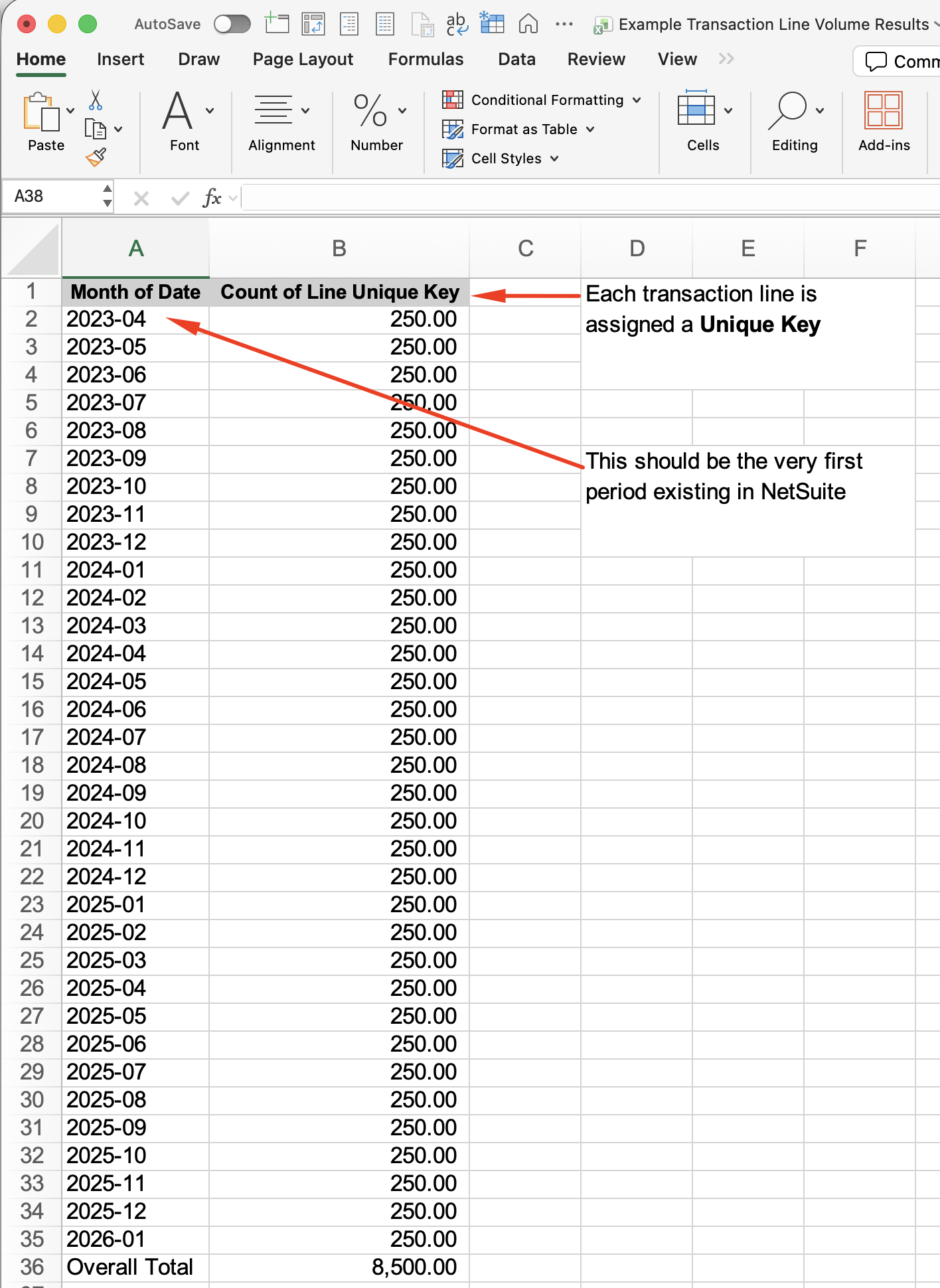
Example result:
Save and Run the Search
Name your saved search (e.g., "Historical Transaction Volume by Line Unique Key").
"Save & Run" the search to view the results.
Your total line count will show as a sum at the bottom of your search in NetSuite.
Export the results to Excel if additional analysis is needed.