Reconciling Items in Cash
Last updated: October 1, 2026
Reconciling items explain why the bank balance and the GL balance differ on a cash account. Examples include outstanding checks, deposits in transit, and bank fees not yet booked. When you create them from the Cash module, they flow into that account's reconciliation, so matching and reconciling happen in one place.
Prerequisites
You need all three of these before you can create reconciling items from Cash:
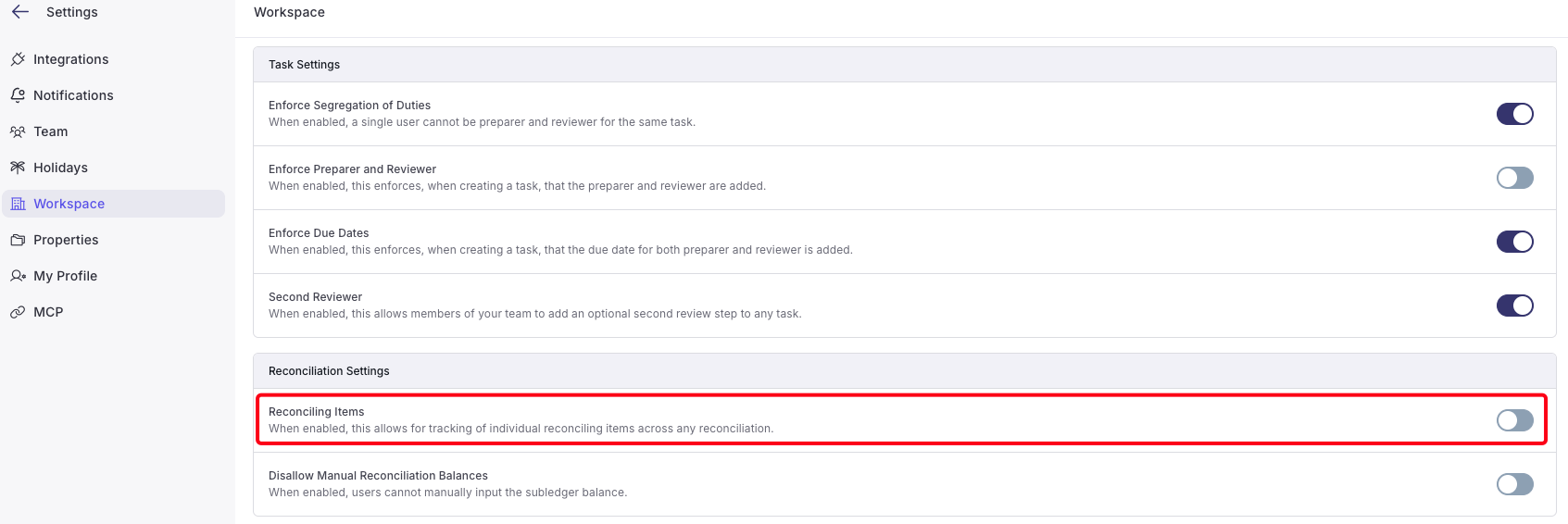
The Reconciling Items setting is turned on. A workspace Admin turns it on in Settings > Workspace. If it's off, the option to create reconciling items won't appear in Cash. If you aren't an Admin, ask one on your team to turn it on.
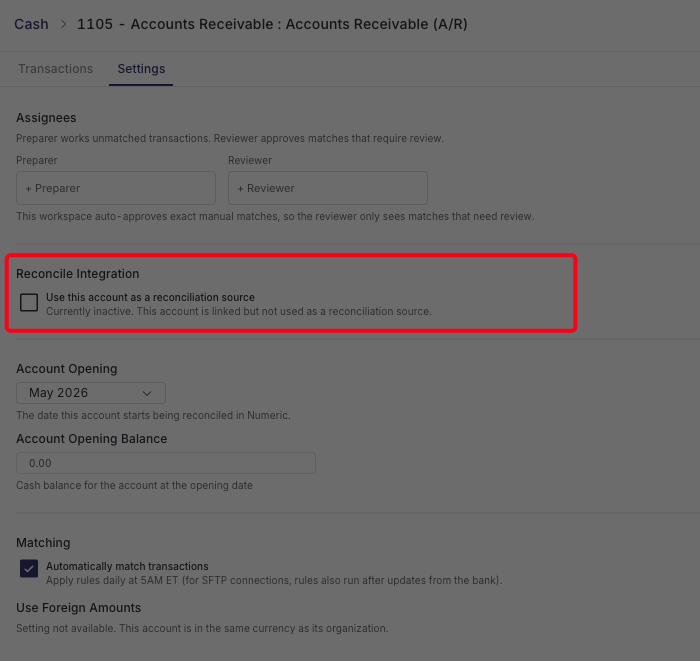
The account is used as a reconciliation source. In Cash > [Account] > Settings, under Reconcile Integration, check Use this account as a reconciliation source. This makes Cash the source of the account's subledger balance in Reconcile. If it's off, the reconciliation pulls its balance from another source, and your Cash matching and reconciling items won't tie out the account.
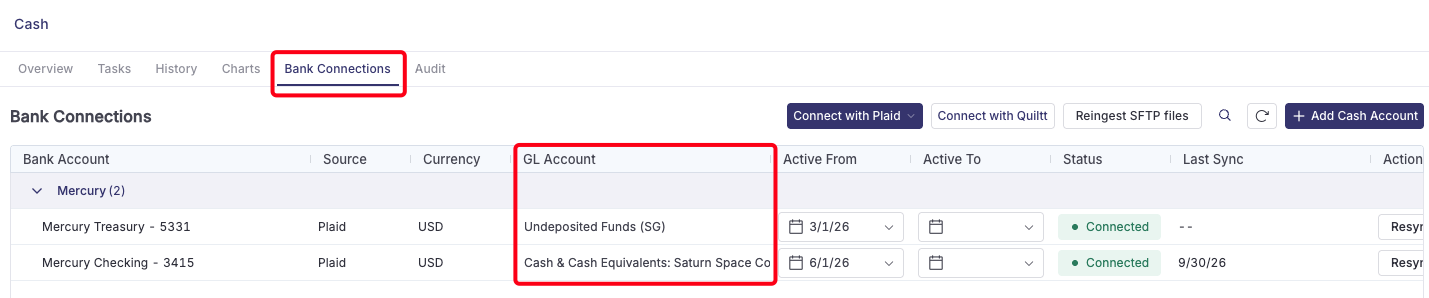
The bank account is linked to its GL account in Cash. This link tells Numeric which GL account the bank activity belongs to. Set it up in Bank Connections by linking the GL account and setting an Active From date.
The period is open. You can't create reconciling items in a closed period. If you need to add or change items for a closed period, reopen the period first.
Background: How Reconciling Items Work
How They Affect Your Reconciliation
Numeric reconciles each cash account using this formula:
Reconciliation Balance = Subledger Balance + Reconciling Items
Subledger Balance is the balance Numeric calculates for the bank account (see the next section).
Reconciling Items is the total of all open reconciling items on the account.
Reconciliation Balance is compared to your GL balance. If the difference is within the variance threshold set on the reconciliation task, the account is reconciled.
Example: The bank shows $100,000, the GL shows $95,000, and there's a $5,000 outstanding check. Add a -$5,000 reconciling item. The Reconciliation Balance becomes $95,000, which matches the GL.
Where the Subledger Balance Comes From
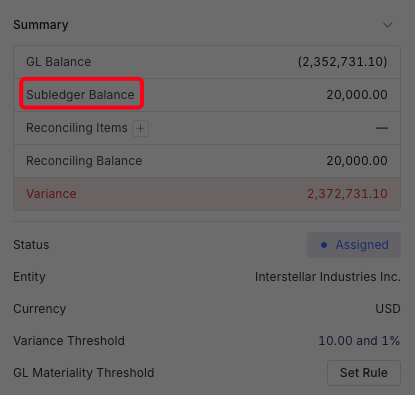
The Use Bank Connection Balance setting on each cash account controls how Numeric calculates the subledger balance:
On: Numeric uses the ending balance your bank reports in its daily file.
Off: Numeric starts from the account's opening balance and adds all approved matches through period end.
Some banks report activity in their balance a day late. For example, a dividend dated 8/31 might not appear in the reported balance until 9/1. With the setting on, that can create a variance even though your bank statement and GL agree. The fix is to change the setting, not to add a reconciling item. If you see a variance you can't explain, check this setting first. Changing it only affects the account you change it on.
Which Reconciliation Report the Item Appears On
Reconciling items appear as a column on reconciliation reports and in the reconciliation task drawer.
If a GL account is on more than one reconciliation report (for example, Consolidated and Unconsolidated), Numeric asks you to choose a report when you create the item. Choose the report you actually reconcile that account on. If you choose the wrong one, the item won't appear where you expect it.
Please note, each bank or GL line can have only one open reconciling item. If a line already has one, you can't create another for it.
A reconciliation can pull data from Cash or from a linked spreadsheet, but not both. If you manage reconciling items in Cash, don't also bring items in from a spreadsheet on the same reconciliation.
Roll-Forward
An open reconciling item carries forward into each later period until it's cleared. An outstanding check that takes four months to clear is created once and stays on every reconciliation until it clears. You don't have to recreate it each month.
Items created before July 29, 2026 don't roll forward. Items created before the roll-forward release stay only in the period where they were created. If older outstanding items still need to show as open, recreate them in the current period, and they'll roll forward from there. This is the most common reason legacy items appear to be missing.
Closed Periods
Once a period is closed, its reconciling items are locked. You can't create, edit, clear, reopen, or delete them until the period is reopened.
Creating Reconciling Items
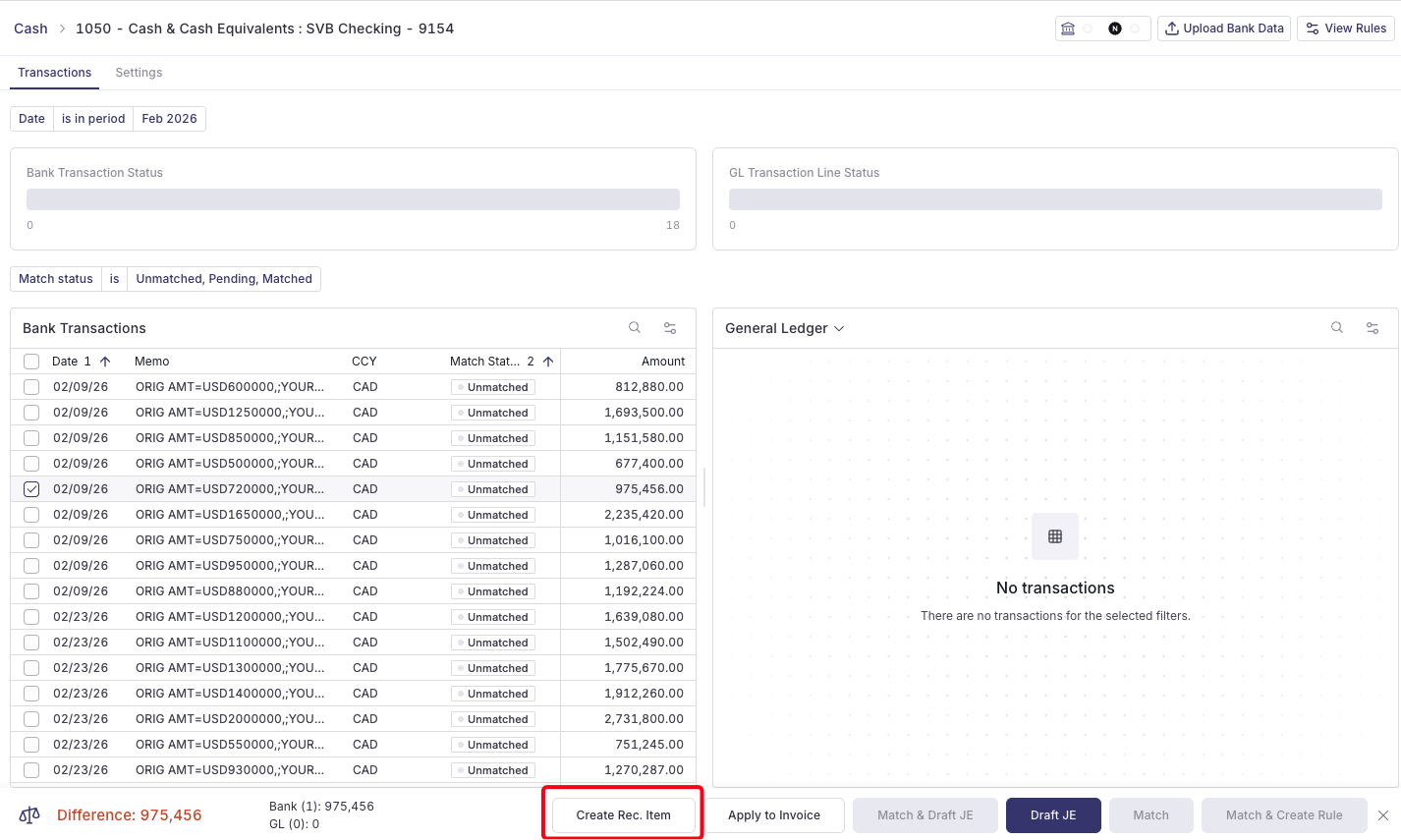
You can create reconciling items from unmatched bank lines or unmatched GL lines. A GL line doesn't need a bank line to match against. For example, an outstanding check recorded in your GL can become a reconciling item on its own.
From Cash (if creating one item)
Go to Cash > [Account] > Transactions.
Find the unmatched bank or GL line.
Select Create Rec. Item.
Confirm the date, description, amount, and report (if you're asked for one), then save.
From Cash (if creating in bulk)
Go to Cash > [Account] > Transactions.
Select all the unmatched lines you want to turn into reconciling items.
Select Create Rec. Items.
Edit the dates and descriptions as needed, then save.
Manually, for legacy items
For older outstanding items that don't have a line in Cash, add them from the reconciliation task drawer in Reconcile. They roll forward like any other item.
Clearing Reconciling Items
Automatically: When a match that includes the item's line is approved in Cash, the item clears in that period.
Manually: Select Mark as Cleared on the item. It moves to Cleared this period and no longer carries into later periods.
Reopen: If you cleared an item by mistake, select Reopen to make it open again.
Clear vs. Delete
Clear means the item was resolved in this period. It stays in the history of earlier periods, so those reconciliations don't change.
Delete removes the item from every period, including past ones. Only delete items created in error. Otherwise, clear them.
Items open for more than 30 days get a ⚠ flag, so stale items are easy to spot.